
Login

Log in

Forgot Username or Password ?
New Here? Create an account
StellarMate
  • Home
  • Products
    • Feature Tour
    • StellarMate OS
      • For Raspberry PIFor Raspberry PI
      • For Mini PCFor Mini PC
      • Bundle (Raspberry PI + Mini PCs)Bundle (Raspberry PI + Mini PCs)
    • StellarMate X Controller
    • StellarMate Pro 128GB
    • StellarMate Pro 64GB
    • Professional Services
    • Ekos Live
    • Distributors
      • USAUSA
      • Canada (Astronomy Plus)Canada (Astronomy Plus)
      • Canada (Telescope Canada)Canada (Telescope Canada)
      • Canada (Ontario Telescope)Canada (Ontario Telescope)
      • United Kingdom (First Light Optics)United Kingdom (First Light Optics)
      • United Kingdom (Dark Clear Skies)United Kingdom (Dark Clear Skies)
      • United Kingdom (365 Astronomy)United Kingdom (365 Astronomy)
      • EuropeEurope
      • SwitzerlandSwitzerland
      • ChinaChina
      • JapanJapan
      • Australia (Bintel)Australia (Bintel)
      • Australia (Optics Central)Australia (Optics Central)
    • View Cart
  • Downloads
    • StellarMateOS
    • Ekos
    • Mobile App
    • StellarMate Tools
    • Documentation
  • Devices
    • Adaptive Optics
    • Auxiliary
    • Cameras
    • Dust Caps
    • Light Box
    • Domes
    • Filter Wheels
    • Focusers
    • Mounts
    • Rotators
    • Observatory Controllers
    • Weather Stations
  • Support
    • First Time Setup
      • StellarMate X
      • StellarMate Pro
      • StellarMate OS
    • Manual
    • Ekos
      • Setup
      • Analyze
      • Capture
      • Focus
      • Guide
      • Align
      • Polar Alignment
      • Scheduler
      • Observatory
      • Mount
        • Mount
        • Meridian Flip
    • FAQ
      • StellarMate
      • StellarMate Pro
      • StellarMate X
      • StellarMate App
      • Mounts
      • Cameras
      • Focusers
      • EkosLive
      • Scheduler
      • Calibration
    • Tutorials
      • Web Manager
      • VNC Viewer
      • GPS Dongles
      • Beta Releases
      • Powered USB Hubs
      • Remote Support
      • Direct Ethernet
      • Ekos Debugger
      • Connecting Bluetooth Mounts
      • Backup Restore
      • Telescopius Mosaic Import
    • Ekos Live
    • Account
    • Submit Ticket
    • View Tickets
    • Survey

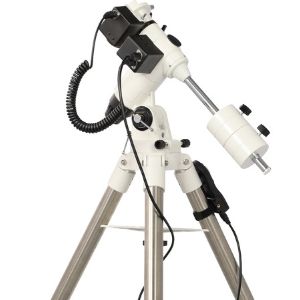
Omegon EQ500-X Equatorial Mount

The Omegon EQ500-X Equatorial Mount driver is included with libindi >= 1.7.8. :


Features

The Omegon EQ500-X Equatorial Mount driver supports:

  • 4 Slew Rates (max, find, center and guide)
  • Single sidereal tracking rate
  • Goto coordinates (via software adjustment)
  • Sync coordinates
  • Abort movement
  • Location configuration (used for initial sync)
  • Pier side
  • Simulation mode
  • Timed pulse guiding

Operation

  • Install the Omegon EQ500-X Equatorial Mount with its pad connected.
  • Orient the right ascension axis towards the pole using either visual alignment or an external alignment tool.
  • Rotate the right ascension axis so that the telescope is on top, and declination axis so that the telescope looks at the pole.
  • Lock axes firmly.
  • Power on the mount using the side button on the pad to select your hemisphere.
  • Plug the USB cable from the pad to the host computer.
  • By default, the pad is recognized as a serial adapter on port /dev/ttyUSB0 (9600 bauds, 8 bits, no parity, 1 stop bit).
  • Execute indiserver with driver `indi_eq500x_telescope` using the method of your choice.
  • When you connect the driver after powering up the mount, the initial position is synced to the local sidereal time of the location your client.

Warning: when moving manually, there is no safety preventing the mount from rotating in a dangerous position in which the optical tube may hit the mount support.

It is mandatory that both the geographical location and host time and date be properly configured for the driver to provide correct LST to the mount. An incorrect location and/or date and time will cause the driver to require a meridian flip at an unexpected right ascension, leading to a dangerous positioning of the optical tube.

1. Main Control tab

Manage the connection of your device using the "Connect" and "Disconnect" button.

You may change the local serial port used for the connection in the Connection tab (default is /dev/ttyUSB0).

You may enter go-to coordinates directly in the RA/DEC edit boxes. Use the "Abort" button to stop the mount from going to the target coordinates.

The mount will report pier side while moving.

2. Connection tab

You may find driver information in this tab.

If you know on which port the mount is plugged, you may enter the port path directly and disable auto search.

If you don't know on which port the mount is plugged, press "Scan Ports" and auto-search will attempt to read RA/DEC from each local port until successful.

3. Options tab

Unless you need a higher update rate while moving manually, leave the polling period to 1000ms (the Go-To feature will reset this period to 1000ms after moving or aborting).

When troubleshooting or reporting issues, you may enable debug mode and configure log level to "debug" in order to provide detailed logs to developers.

The driver also offers a mode that simulates the mount movement, that you can enable with the "Simulation" item before connecting the driver (in this mode the device is not used). This mode is used by unitary tests when developing.

Joystick mode allows you to control the movement of your mount with a Linux-compatible joystick connected to the same host.

4. Motion Control tab

Movement buttons "North", "South", "West" and "East" rotate the mount at the rate selected by the "Slew Rate" entry. Click to engage movement, click again to stop.

Warning: when moving manually, there is no safety preventing the mount from rotating in a dangerous position in which the optical tube may hit the mount support.

5. Site Management tab

If your client software will not, configure the geographical site in which the mount is set up. Save the configuration in the Options tab.

It is mandatory that both the geographical location and host time and date be properly configured for the driver to provide correct LST to the mount. An incorrect location and/or date and time will cause the driver to require a meridian flip at an unexpected right ascension, leading to a dangerous positioning of the optical tube.

6. Guide tab

You may enter timed pulse commands in this tab. This set of properties can be used by a guider such as KStars Ekos or PHD2 in an automated manner.

The mount does not support standard LX200 pulse commands.

Issues

  • To improve the precision of the goto feature, the driver provides software adjustment but the performance of the algorithm may suffer from high load on the host.
  • The mount does not offer pulse guiding through LX200 Mg commands, instead a software timed guide pulse is used.
  • Goto movements are expected to always go through the meridian opposite to the pole.
  • However, neither the mount nor the driver will prevent manual movement or tracking through the pole meridian.
  • The driver is unable to read the firmware version for compatibility verification.
Rating
0 vote
Favoured:
0
  • 174.jpg

Listing Details

Website
www.astroshop.eu/p,56115
Driver Name
EQ500X
Driver Executable
indi_eq500x_telescope
Family
Telescopes
Manufacturer
Omegon
Platforms
Linux,BSD,OSX
Author
Eric Dejouhanet
Version
1.1
Submit reviewPrintVisit
Reviews (0)

Be the first to review this listing!

« Previous listing in Omegon | Next listing in Omegon »
logo

© 2017-2025 by Ikarus Technologies. All rights reserved.

About

FAQ Buy Terms of Service Privacy Policy

Support

Downloads Manuals Warranty Support

Follow Us!

Facebook Twitter Instagram Youtube
  • Home
  • Products
    • Feature Tour
    • StellarMate OS
      • For Raspberry PIFor Raspberry PI
      • For Mini PCFor Mini PC
      • Bundle (Raspberry PI + Mini PCs)Bundle (Raspberry PI + Mini PCs)
    • StellarMate X Controller
    • StellarMate Pro 128GB
    • StellarMate Pro 64GB
    • Professional Services
    • Ekos Live
    • Distributors
      • USAUSA
      • Canada (Astronomy Plus)Canada (Astronomy Plus)
      • Canada (Telescope Canada)Canada (Telescope Canada)
      • Canada (Ontario Telescope)Canada (Ontario Telescope)
      • United Kingdom (First Light Optics)United Kingdom (First Light Optics)
      • United Kingdom (Dark Clear Skies)United Kingdom (Dark Clear Skies)
      • United Kingdom (365 Astronomy)United Kingdom (365 Astronomy)
      • EuropeEurope
      • SwitzerlandSwitzerland
      • ChinaChina
      • JapanJapan
      • Australia (Bintel)Australia (Bintel)
      • Australia (Optics Central)Australia (Optics Central)
    • View Cart
  • Downloads
    • StellarMateOS
    • Ekos
    • Mobile App
    • StellarMate Tools
    • Documentation
  • Devices
    • Adaptive Optics
    • Auxiliary
    • Cameras
    • Dust Caps
    • Light Box
    • Domes
    • Filter Wheels
    • Focusers
    • Mounts
    • Rotators
    • Observatory Controllers
    • Weather Stations
  • Support
    • First Time Setup
      • StellarMate X
      • StellarMate Pro
      • StellarMate OS
    • Manual
    • Ekos
      • Setup
      • Analyze
      • Capture
      • Focus
      • Guide
      • Align
      • Polar Alignment
      • Scheduler
      • Observatory
      • Mount
        • Mount
        • Meridian Flip
    • FAQ
      • StellarMate
      • StellarMate Pro
      • StellarMate X
      • StellarMate App
      • Mounts
      • Cameras
      • Focusers
      • EkosLive
      • Scheduler
      • Calibration
    • Tutorials
      • Web Manager
      • VNC Viewer
      • GPS Dongles
      • Beta Releases
      • Powered USB Hubs
      • Remote Support
      • Direct Ethernet
      • Ekos Debugger
      • Connecting Bluetooth Mounts
      • Backup Restore
      • Telescopius Mosaic Import
    • Ekos Live
    • Account
    • Submit Ticket
    • View Tickets
    • Survey