
Login

Log in

Forgot Username or Password ?
New Here? Create an account
StellarMate
  • Home
  • Products
    • Feature Tour
    • StellarMate OS
      • For Raspberry PIFor Raspberry PI
      • For Mini PCFor Mini PC
      • Bundle (Raspberry PI + Mini PCs)Bundle (Raspberry PI + Mini PCs)
    • StellarMate X Controller
    • StellarMate Pro 128GB
    • StellarMate Pro 64GB
    • Professional Services
    • Ekos Live
    • Distributors
      • USAUSA
      • Canada (Astronomy Plus)Canada (Astronomy Plus)
      • Canada (Telescope Canada)Canada (Telescope Canada)
      • Canada (Ontario Telescope)Canada (Ontario Telescope)
      • United Kingdom (First Light Optics)United Kingdom (First Light Optics)
      • United Kingdom (Dark Clear Skies)United Kingdom (Dark Clear Skies)
      • United Kingdom (365 Astronomy)United Kingdom (365 Astronomy)
      • EuropeEurope
      • SwitzerlandSwitzerland
      • ChinaChina
      • JapanJapan
      • Australia (Bintel)Australia (Bintel)
      • Australia (Optics Central)Australia (Optics Central)
    • View Cart
  • Downloads
    • StellarMateOS
    • Ekos
    • Mobile App
    • StellarMate Tools
    • Documentation
  • Devices
    • Adaptive Optics
    • Auxiliary
    • Cameras
    • Dust Caps
    • Light Box
    • Domes
    • Filter Wheels
    • Focusers
    • Mounts
    • Rotators
    • Observatory Controllers
    • Weather Stations
  • Support
    • First Time Setup
      • StellarMate X
      • StellarMate Pro
      • StellarMate OS
    • Manual
    • Ekos
      • Setup
      • Analyze
      • Capture
      • Focus
      • Guide
      • Align
      • Polar Alignment
      • Scheduler
      • Observatory
      • Mount
        • Mount
        • Meridian Flip
    • FAQ
      • StellarMate
      • StellarMate Pro
      • StellarMate X
      • StellarMate App
      • Mounts
      • Cameras
      • Focusers
      • EkosLive
      • Scheduler
      • Calibration
    • Tutorials
      • Web Manager
      • VNC Viewer
      • GPS Dongles
      • Beta Releases
      • Powered USB Hubs
      • Remote Support
      • Direct Ethernet
      • Ekos Debugger
      • Connecting Bluetooth Mounts
      • Backup Restore
      • Telescopius Mosaic Import
    • Ekos Live
    • Account
    • Submit Ticket
    • View Tickets
    • Survey

QHY CCD & Filter Wheel

Features

The driver supports capture, binning, setting temperature, gain and offset adjustment, subframing, and control of internal QHY Color-Filter-Wheel (CFW). Moreover, guiding via ST4 port is also supported.
For QHY cameras with built-in Filter Wheels (e.g. Minicam8) or Filter wheels that are connected directly to the camera body, then there is no need to specify a separate Filter Wheel driver in your equipment profile. Just the QHY CCD driver is sufficient. In your optical train setup, simply select the Filter Wheel as your camera.

Main Control Panel

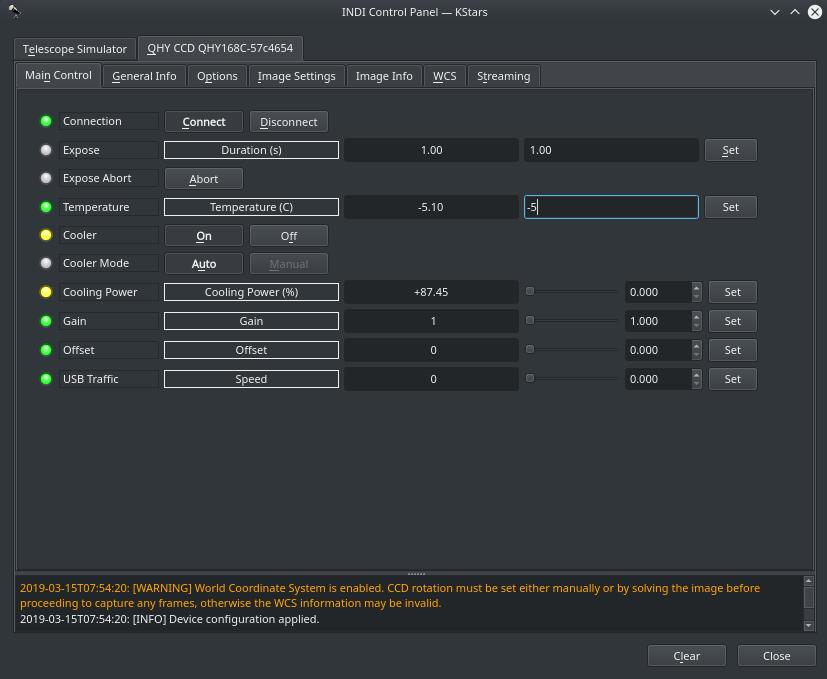
Temperature control is available if the camera is equipped with TEC cooler. Depending on the camera, TEC cooler can be controlled either automatically or manually.

If you directly set the temperature, the driver switches to automatic cooler mode where the cooler power is adjusted by the driver until the desired temperature is reached and kept. Some camera allow manual TEC control where you can directly set the TEC cooler power. In this manual mode, the cooler power is kept constant regardless of the temperature. Manual mode can be useful for advanced users who wishes to slow the cooling process for their camera since the QHY driver starts cooling to 100% when a lower temperature is requested.

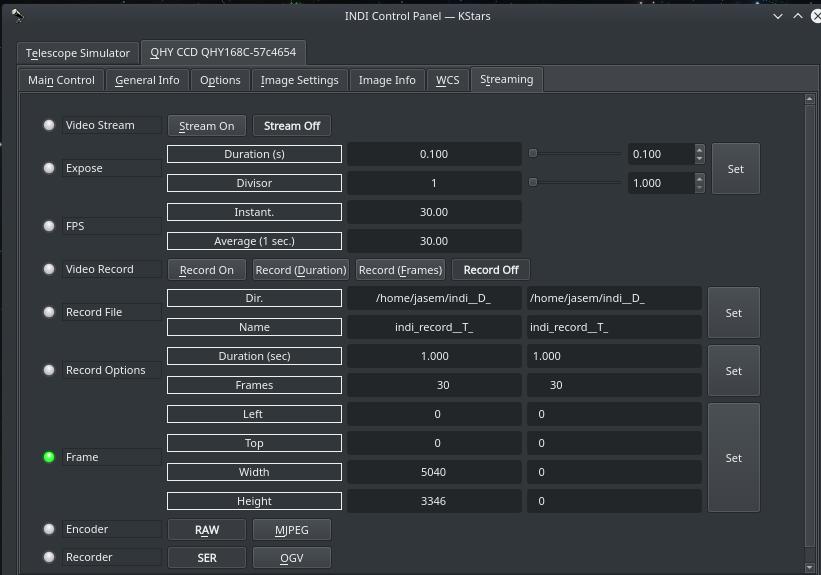
You can also enable video streaming and save recording in LuCam SER format or OGV format. When enabling video streaming, the Rate Divisor property decides how many frames to skip before sending it to the client while the FPS sets the desired frames-per-second requested. When tested on embedeed platforms like Raspbeerry PI, the frames due to USB 2.0 limitations are in the range of 12-18 FPS.

The driver can detect and run multiple devices, therefore you only need to run one instance of the driver even if you have multiple CCDs connected. i.e.

indiserver -v indi_qhy_ccd

Operation
Streaming

Once you're connected, you can capture images as FITS from the camera. You can also adjust gain and set temperature if cooling is supported. Images can be downloaded to the client or saved directly to the hard disk. If the CCD has an ST4 port, it should supported guiding via any INDI-compatible guiding application such as Ekos/PHD2.

Amp Glow Control

Some cameras provide a toggle to enable or disable Amp-glow control. However, for most cameras, this setting is already enabled by default in the camera and no control is exposed. That is, amp-glow control is enabled all the time.
Rating
532
2 votes
Favoured:
1
  • 57.jpg

Listing Details

Website
www.qhyccd.com
Driver Name
QHY CCD
Driver Executable
indi_qhy_ccd
Family
CCD
Manufacturer
QHY
Platforms
Linux
Author
Jasem Mutlaq, Zhirong Li
Version
1.5
Submit reviewPrintVisit
Reviews (0)

Be the first to review this listing!

« Previous listing in Cameras | Next listing in Cameras »
logo

© 2017-2026 by Ikarus Technologies. All rights reserved.

About

FAQ Buy Terms of Service Privacy Policy

Follow Us!

Facebook X Instagram Youtube Discord

Support

Downloads Manuals Warranty Support
  • Home
  • Products
    • Feature Tour
    • StellarMate OS
      • For Raspberry PIFor Raspberry PI
      • For Mini PCFor Mini PC
      • Bundle (Raspberry PI + Mini PCs)Bundle (Raspberry PI + Mini PCs)
    • StellarMate X Controller
    • StellarMate Pro 128GB
    • StellarMate Pro 64GB
    • Professional Services
    • Ekos Live
    • Distributors
      • USAUSA
      • Canada (Astronomy Plus)Canada (Astronomy Plus)
      • Canada (Telescope Canada)Canada (Telescope Canada)
      • Canada (Ontario Telescope)Canada (Ontario Telescope)
      • United Kingdom (First Light Optics)United Kingdom (First Light Optics)
      • United Kingdom (Dark Clear Skies)United Kingdom (Dark Clear Skies)
      • United Kingdom (365 Astronomy)United Kingdom (365 Astronomy)
      • EuropeEurope
      • SwitzerlandSwitzerland
      • ChinaChina
      • JapanJapan
      • Australia (Bintel)Australia (Bintel)
      • Australia (Optics Central)Australia (Optics Central)
    • View Cart
  • Downloads
    • StellarMateOS
    • Ekos
    • Mobile App
    • StellarMate Tools
    • Documentation
  • Devices
    • Adaptive Optics
    • Auxiliary
    • Cameras
    • Dust Caps
    • Light Box
    • Domes
    • Filter Wheels
    • Focusers
    • Mounts
    • Rotators
    • Observatory Controllers
    • Weather Stations
  • Support
    • First Time Setup
      • StellarMate X
      • StellarMate Pro
      • StellarMate OS
    • Manual
    • Ekos
      • Setup
      • Analyze
      • Capture
      • Focus
      • Guide
      • Align
      • Polar Alignment
      • Scheduler
      • Observatory
      • Mount
        • Mount
        • Meridian Flip
    • FAQ
      • StellarMate
      • StellarMate Pro
      • StellarMate X
      • StellarMate App
      • Mounts
      • Cameras
      • Focusers
      • EkosLive
      • Scheduler
      • Calibration
    • Tutorials
      • Web Manager
      • VNC Viewer
      • GPS Dongles
      • Beta Releases
      • Powered USB Hubs
      • Remote Support
      • Direct Ethernet
      • Ekos Debugger
      • Connecting Bluetooth Mounts
      • Backup Restore
      • Telescopius Mosaic Import
    • Ekos Live
    • Account
    • Submit Ticket
    • View Tickets
    • Survey