Renting an Observatory
What is Observatory Renting?
Observatory Renting lets StellarMate users share their observatories with each other. If you have a telescope set up under dark skies, you can let other users book it for the nights you are not using it. If you do not have dark skies or the equipment you need, you can book another user’s observatory and image with it from your own tablet, wherever you are.
There are two roles:
Owner: The user whose observatory is rented. The owner makes the observatory rentable, decides what renters can use, and approves or rejects each booking request.
Renter: The user who books the observatory. The renter picks the days and hours, and once the owner approves, controls the observatory remotely through EkosLive during the booked time.
A booking is made of one or more nights. Only the dark part of each night can be booked, since that is when imaging is possible. Two renters can never book the same hours.
During a booking, the renter uses Ekos on the owner’s StellarMate as if it were their own, within the permissions the owner set. The renter cannot change the owner’s device settings, and every image the renter captures is saved to the renter’s own EkosLive cloud. When the renter disconnects, the owner’s StellarMate is put back as it was.
Renting is currently in Beta.
Make your observatory rentable
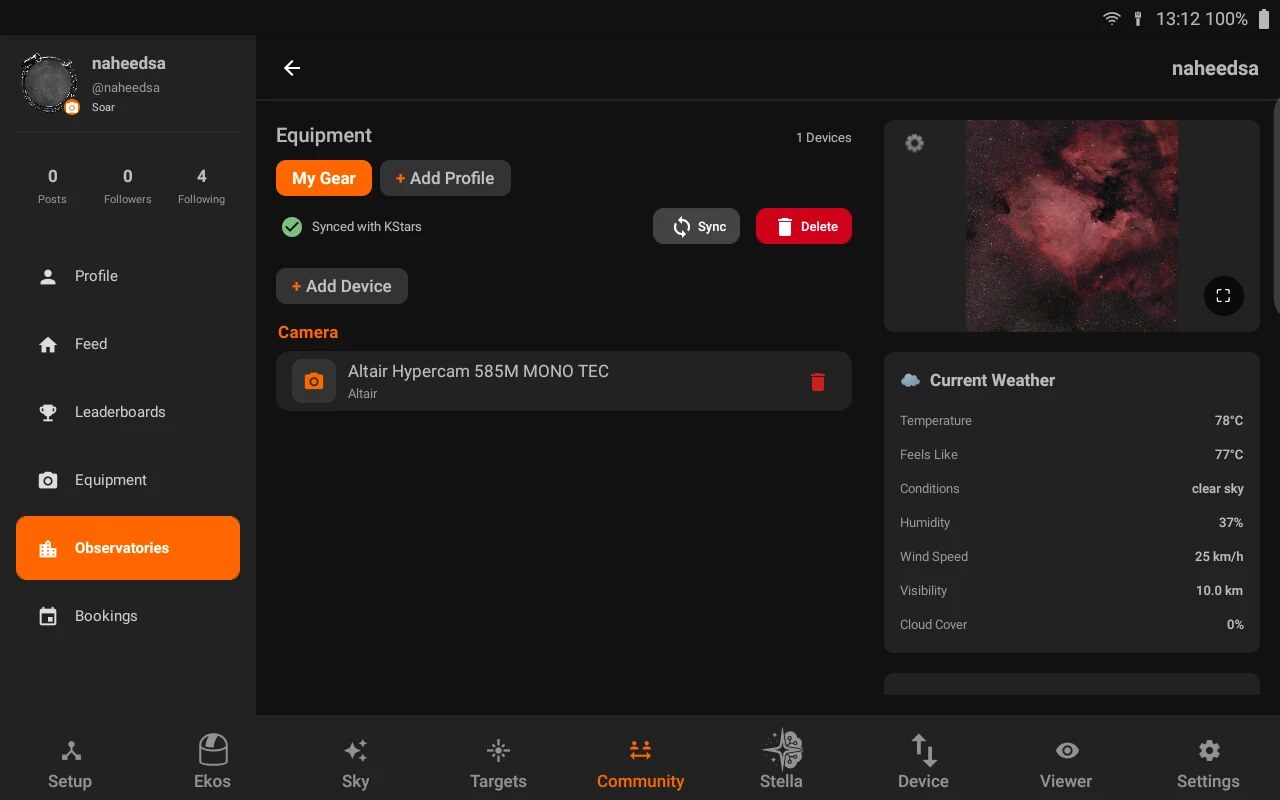
Open your observatory under Community > Observatories. Make sure your equipment is synced with KStars, since renters see the equipment listed here.
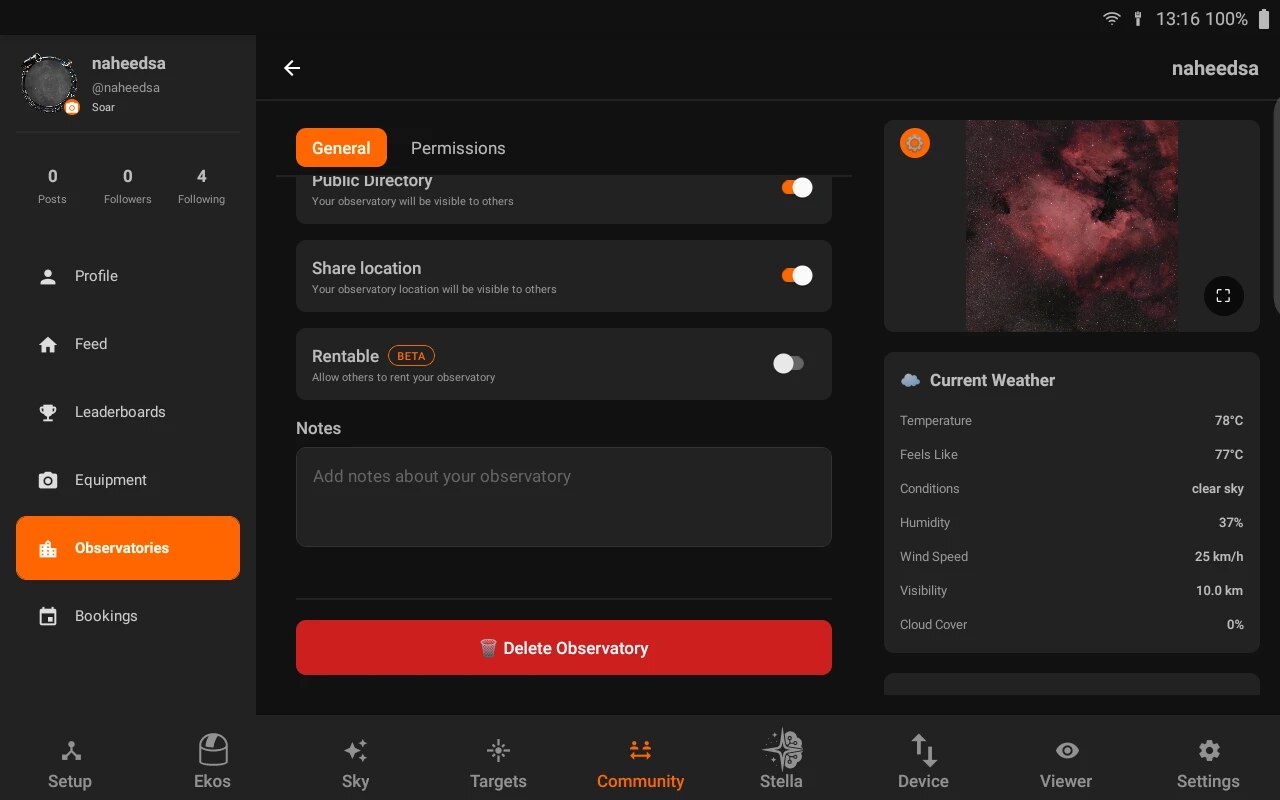
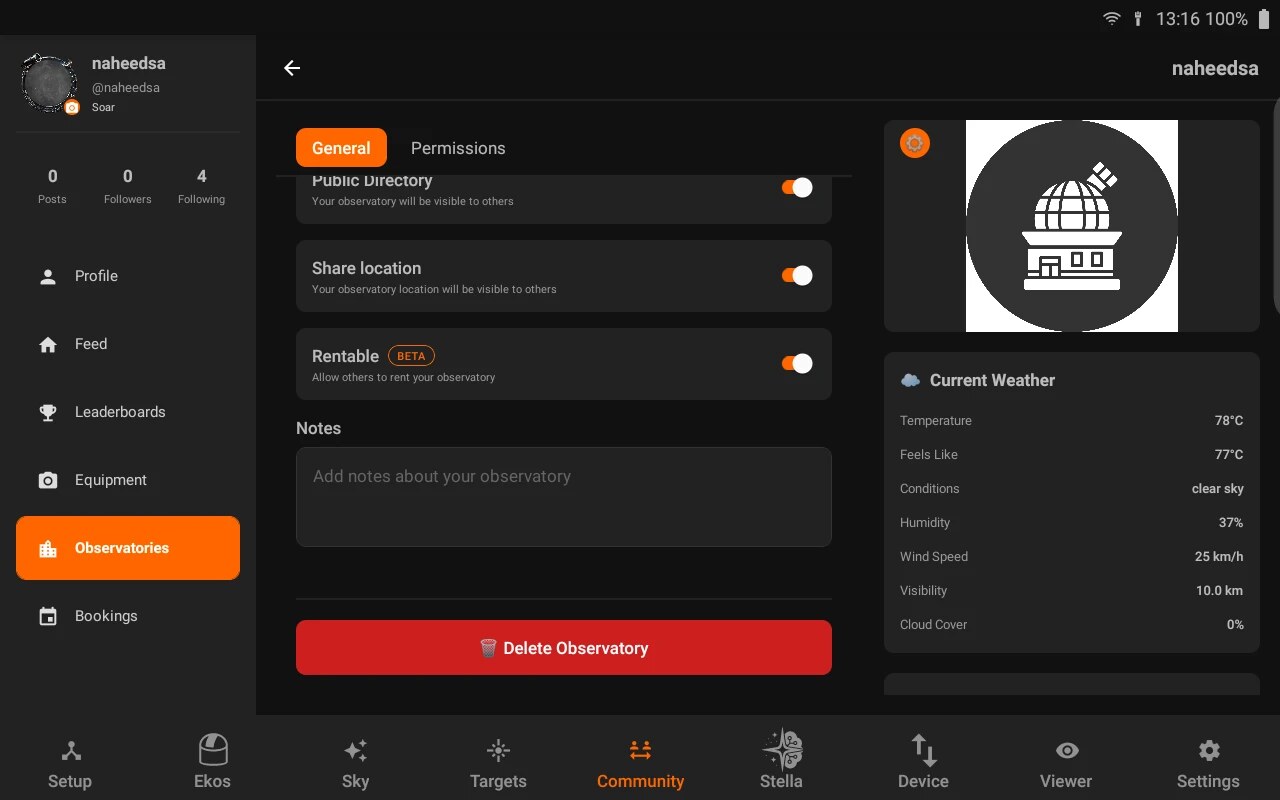
Press on Observatory Settings and switch on Rentable.
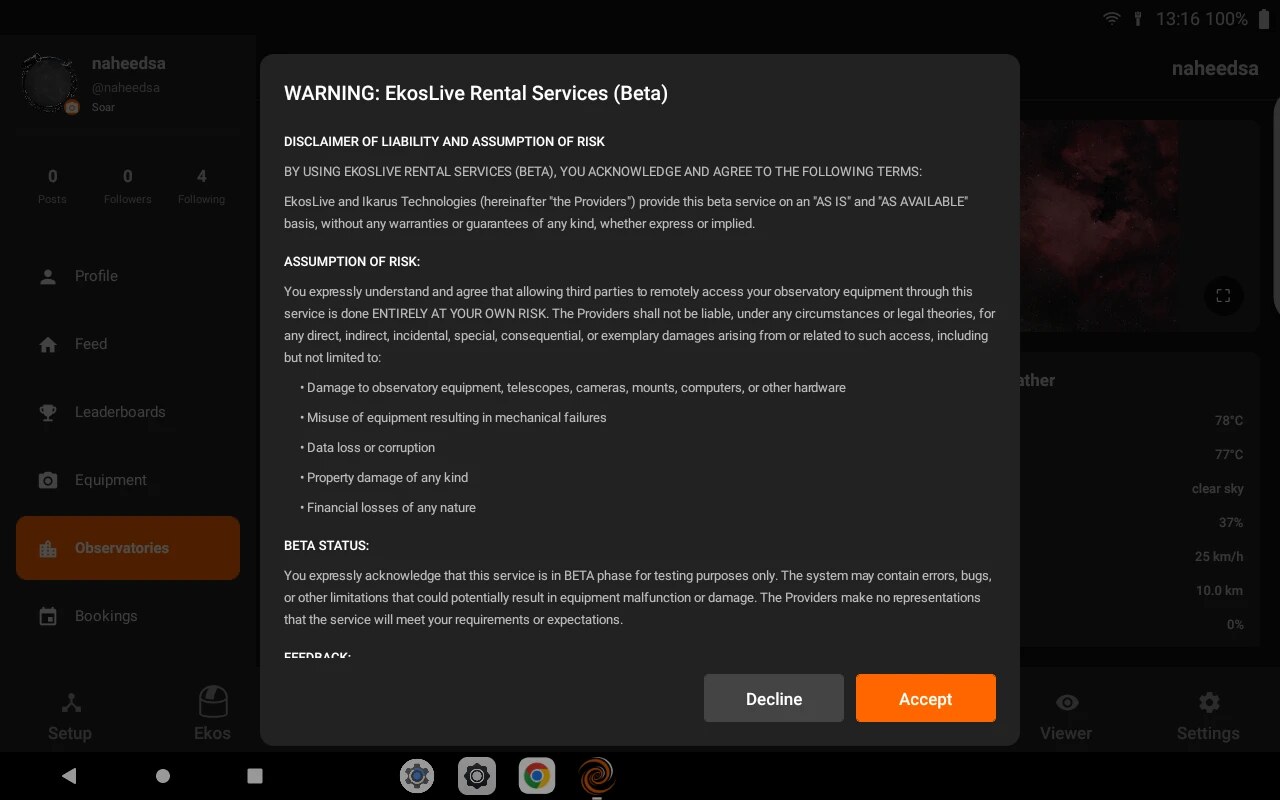
The first popup is the disclaimer of liability. Read it and press Accept.
The second popup is the rental service agreement. Press Confirm.
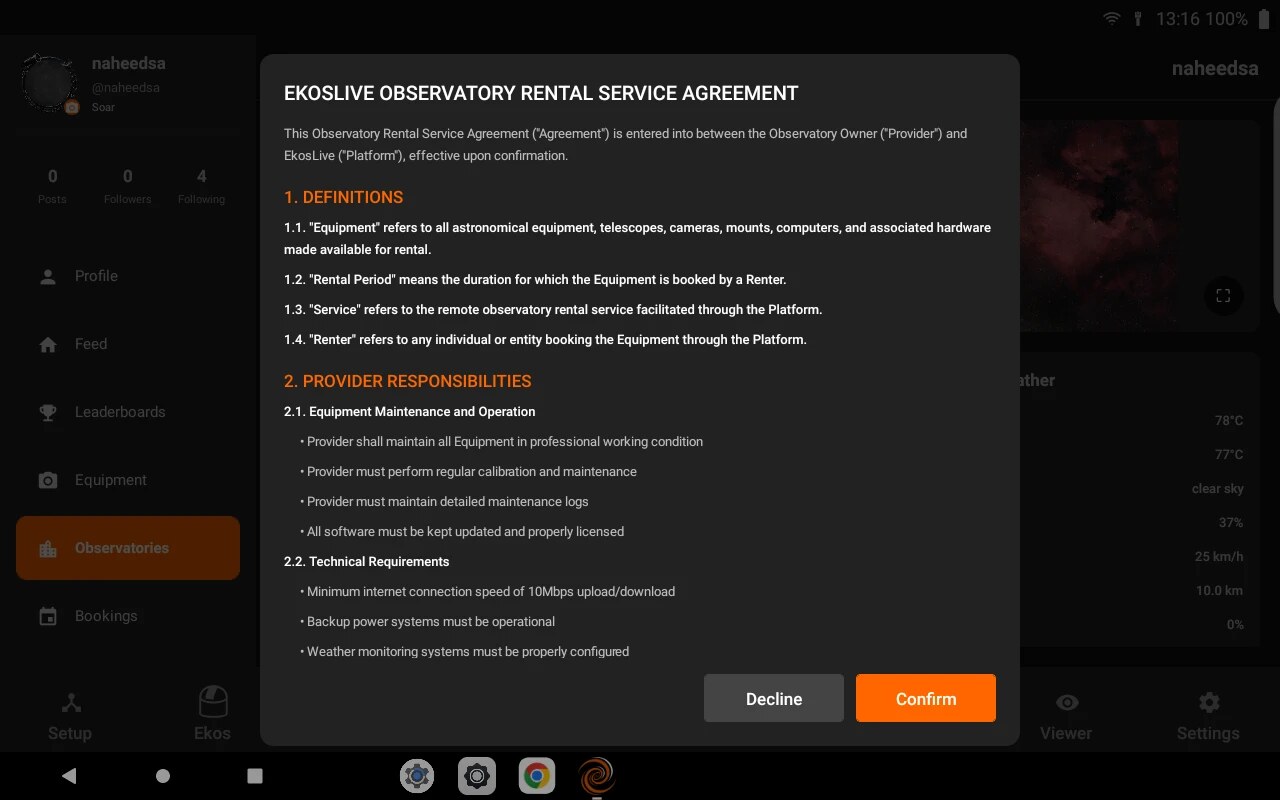
Your observatory is now rentable and listed for other users.
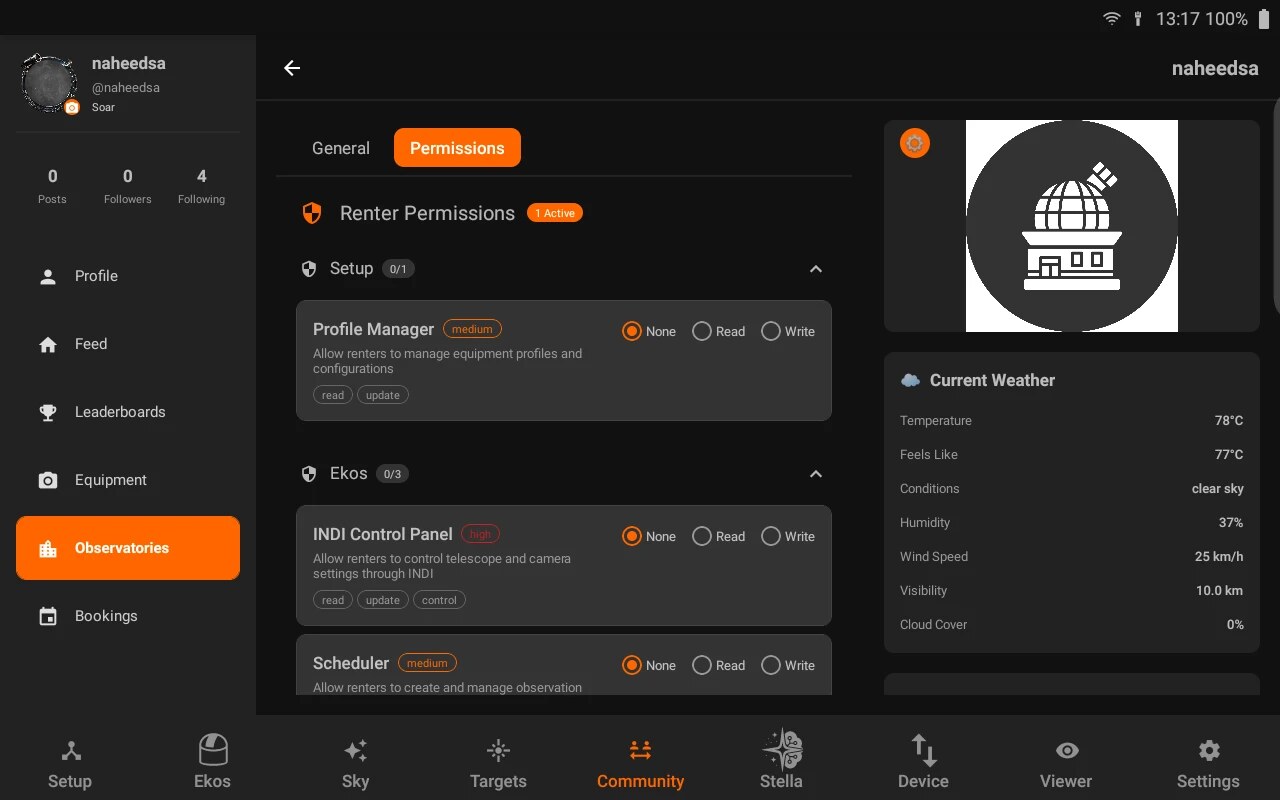
On the Permissions tab, choose what renters can use for each part of Ekos:
None: The renter cannot use it.
Read: The renter can see it but cannot change it.
Write: The renter has full control.
These permissions apply to every renter.
Book an observatory
Sign in with your own account and go to Community > Observatories > Public. Turn on Rentable only to see only the observatories that are up for rent. Observatories that can be rented are marked with a Book Me ribbon.
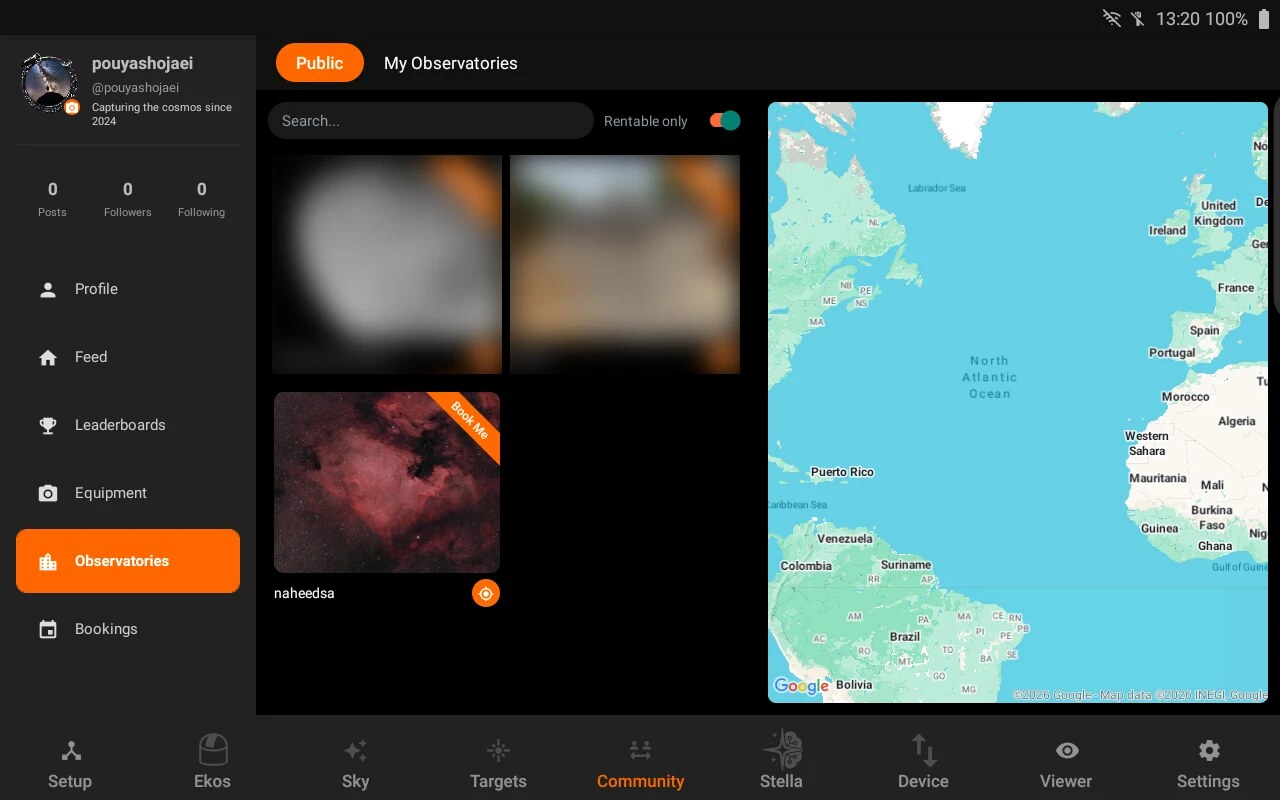
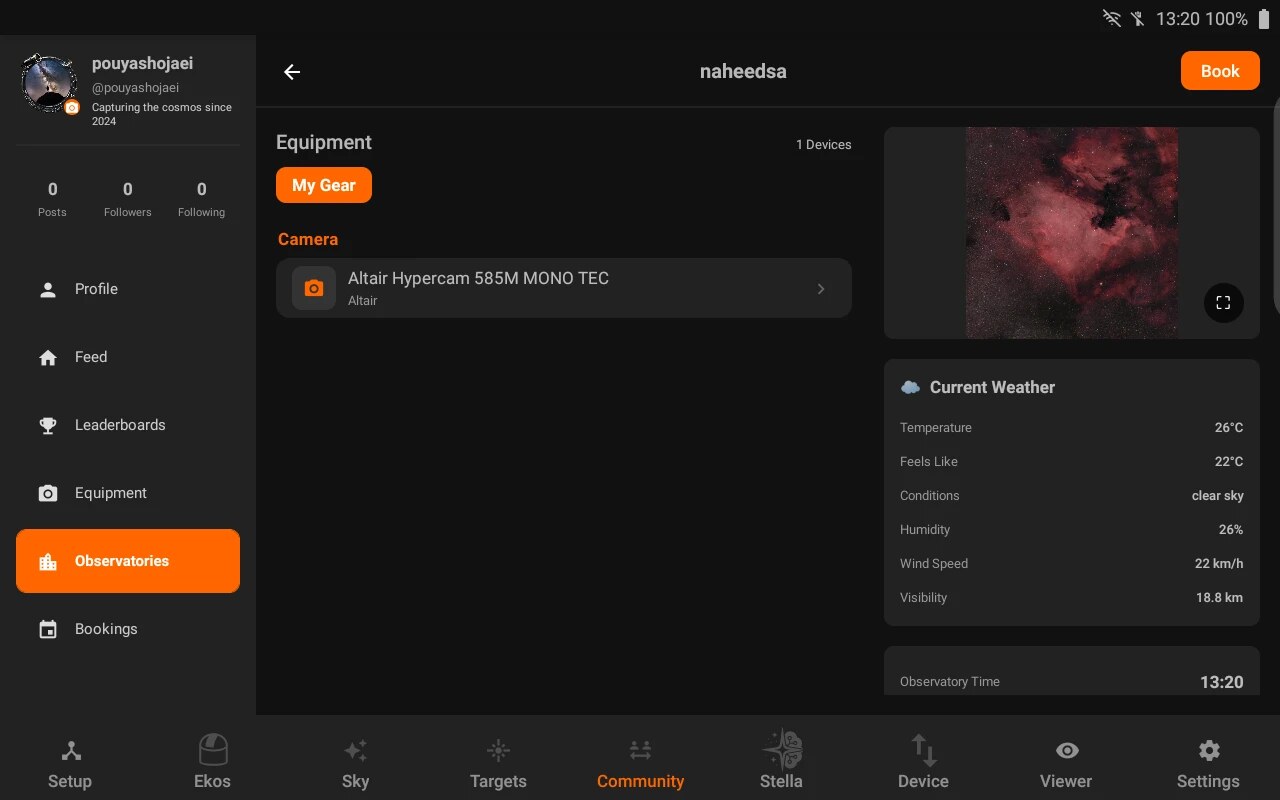
Press on an observatory to view its equipment and weather, then press Book.
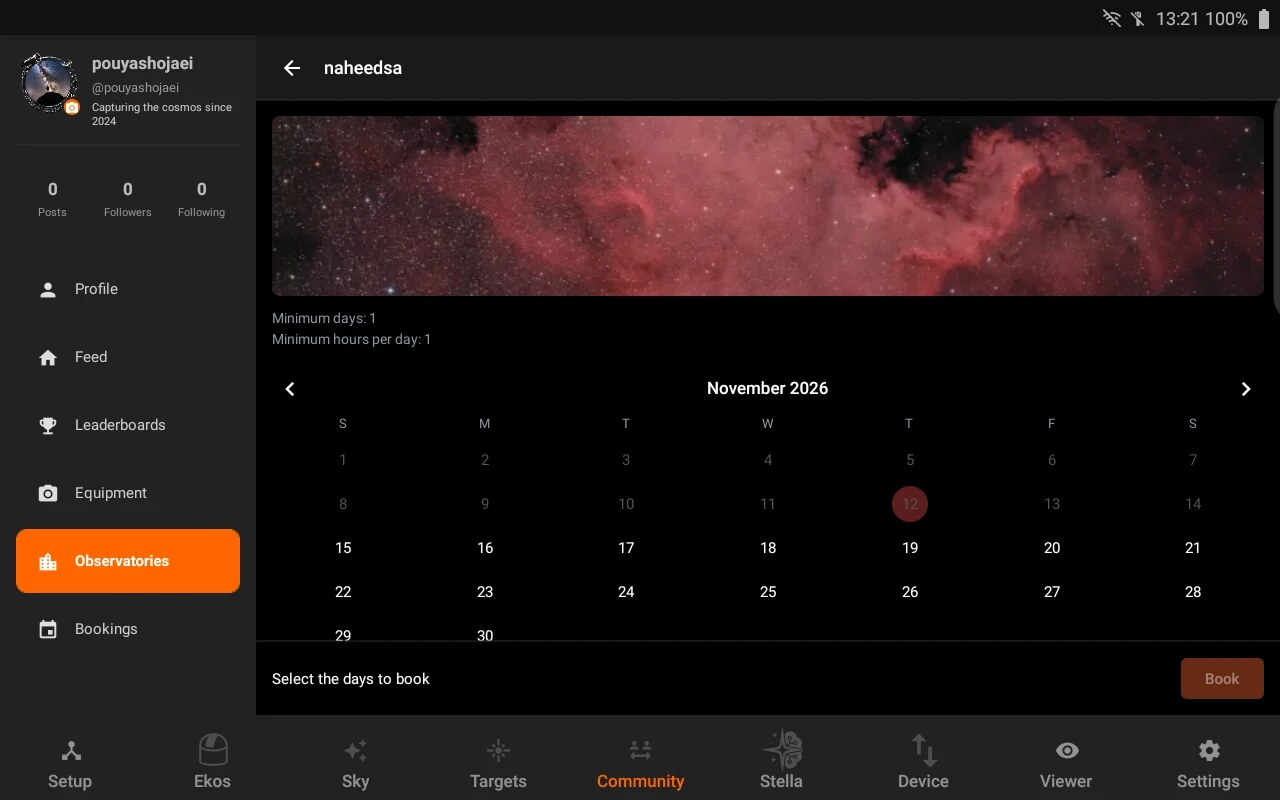
Select the days you want to book, then press Book. The minimum days and hours per day are set by the owner.
Red days are already booked and cannot be selected.
Greyed days are not available.
A dot marks days where some hours are already requested. The rest of the night can still be booked.
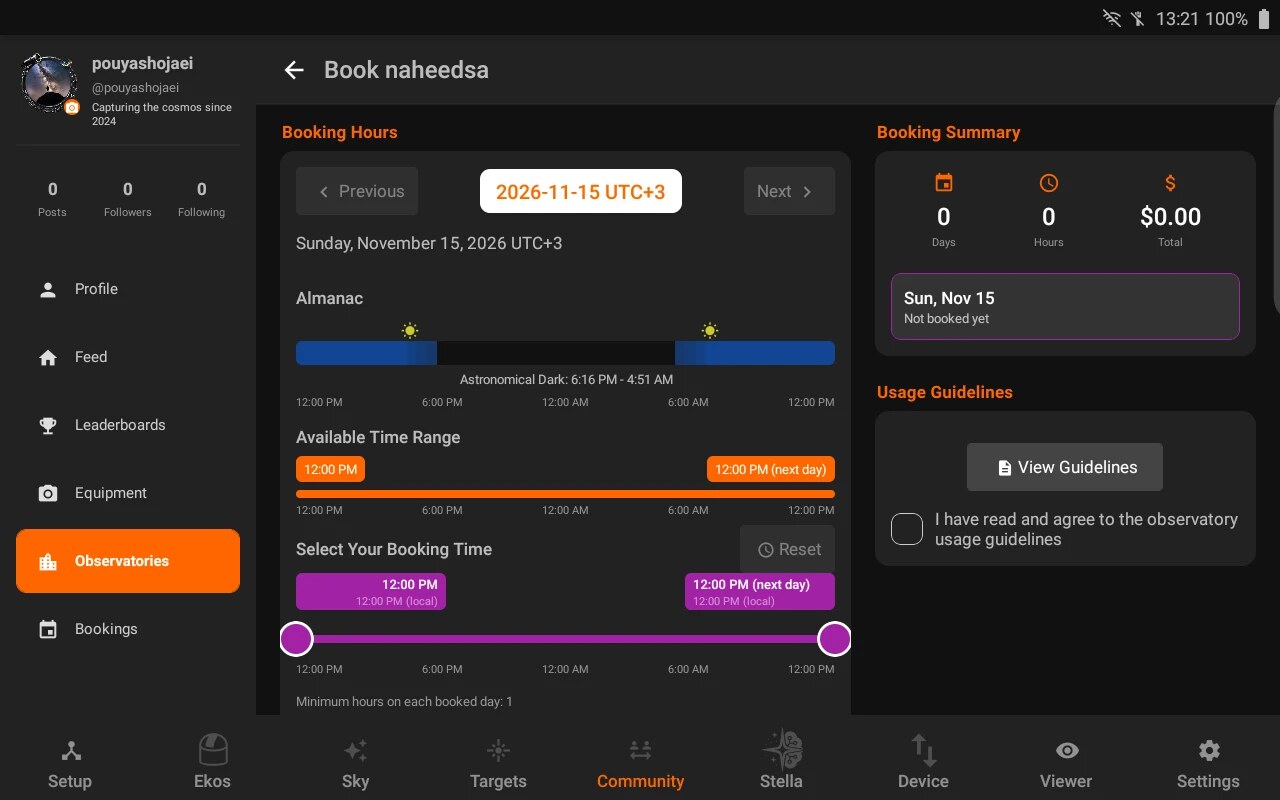
For each day, select your booking time with the slider. The available time is the astronomical dark time at the observatory, to the minute (for example 6:16 PM to 4:51 AM). You cannot book outside of it.
Hours that other users already requested or booked are shown in red and listed as Not available. The free hours left for the day are shown under Free hours. If the day is already fully booked, go back and select another day.
Times are shown in the observatory’s time zone. The smaller time under each handle is your local time.
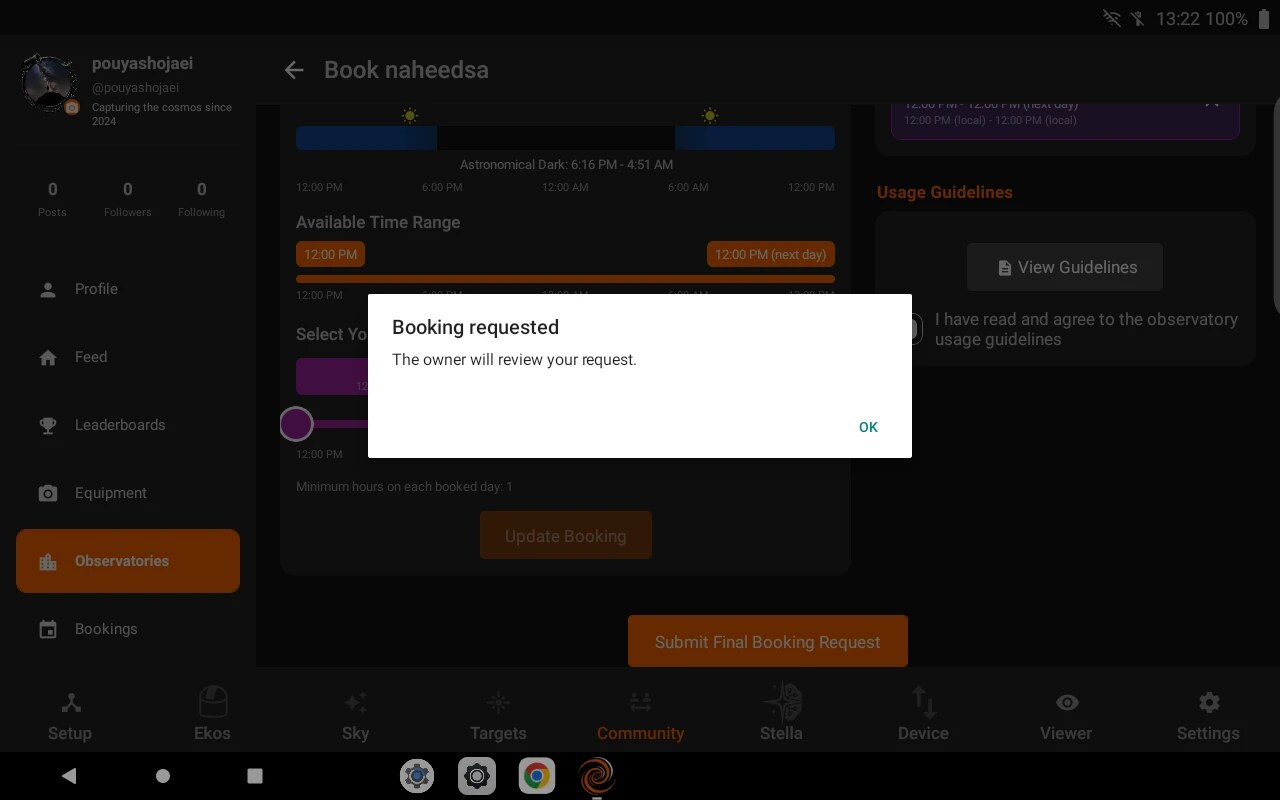
Check the Booking Summary, read the usage guidelines and agree to them, then press Submit Final Booking Request.
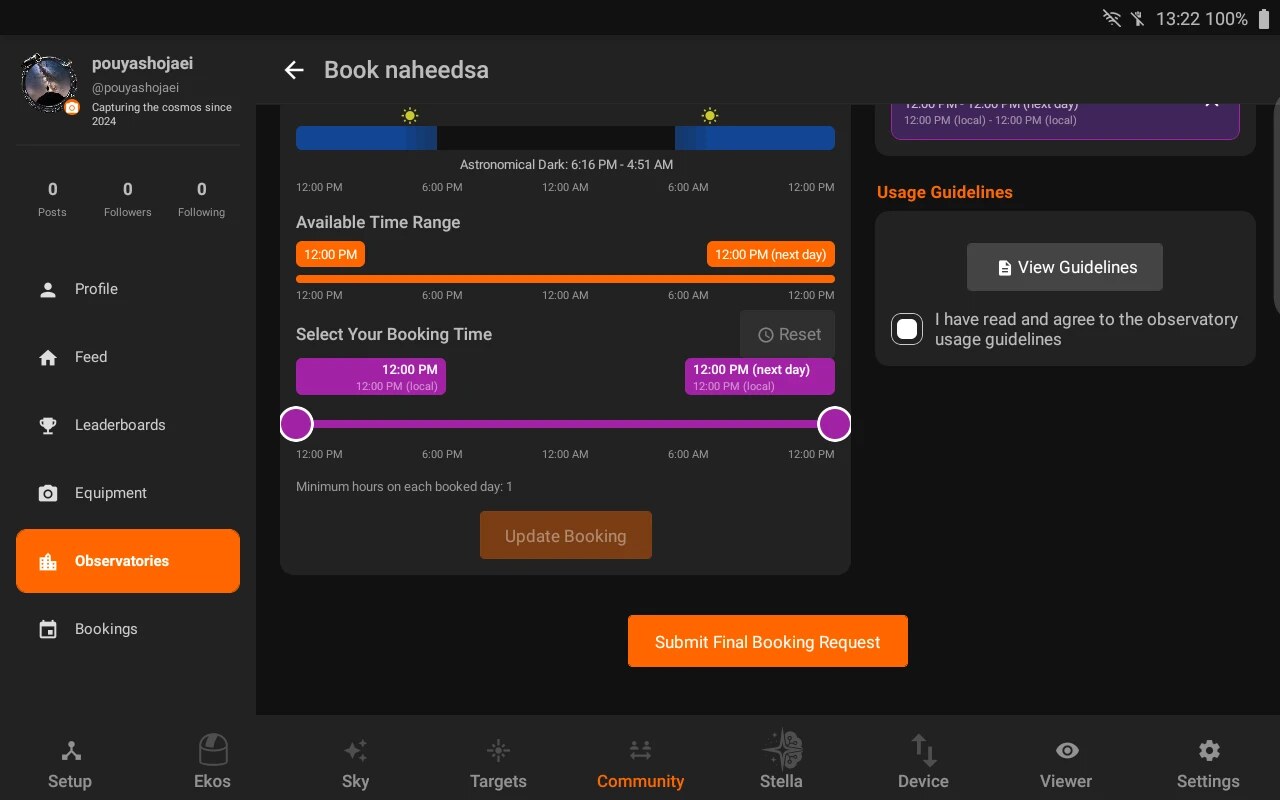
Your request is sent to the owner for review.
Approve a booking request
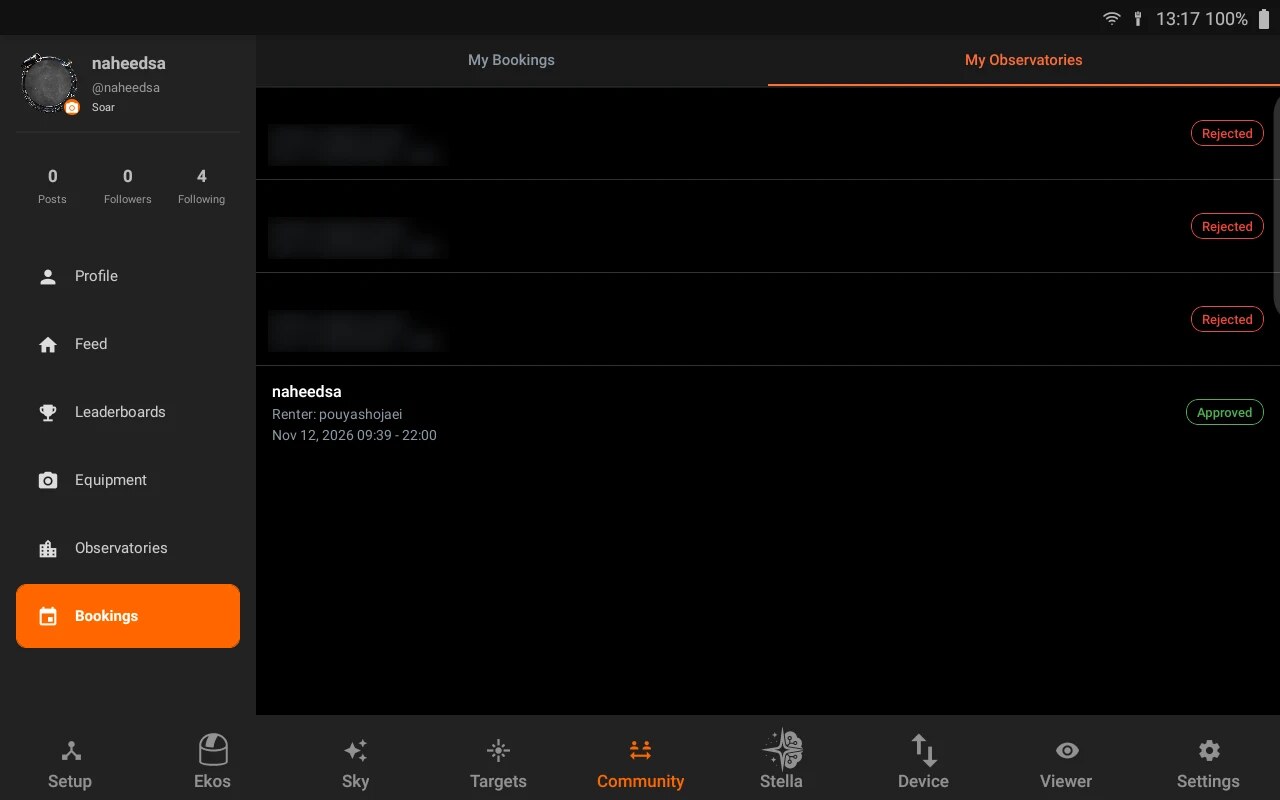
As an owner, you can see the requests for your observatories under Community > Bookings > My Observatories. You can approve or reject each request.
Use the rented observatory
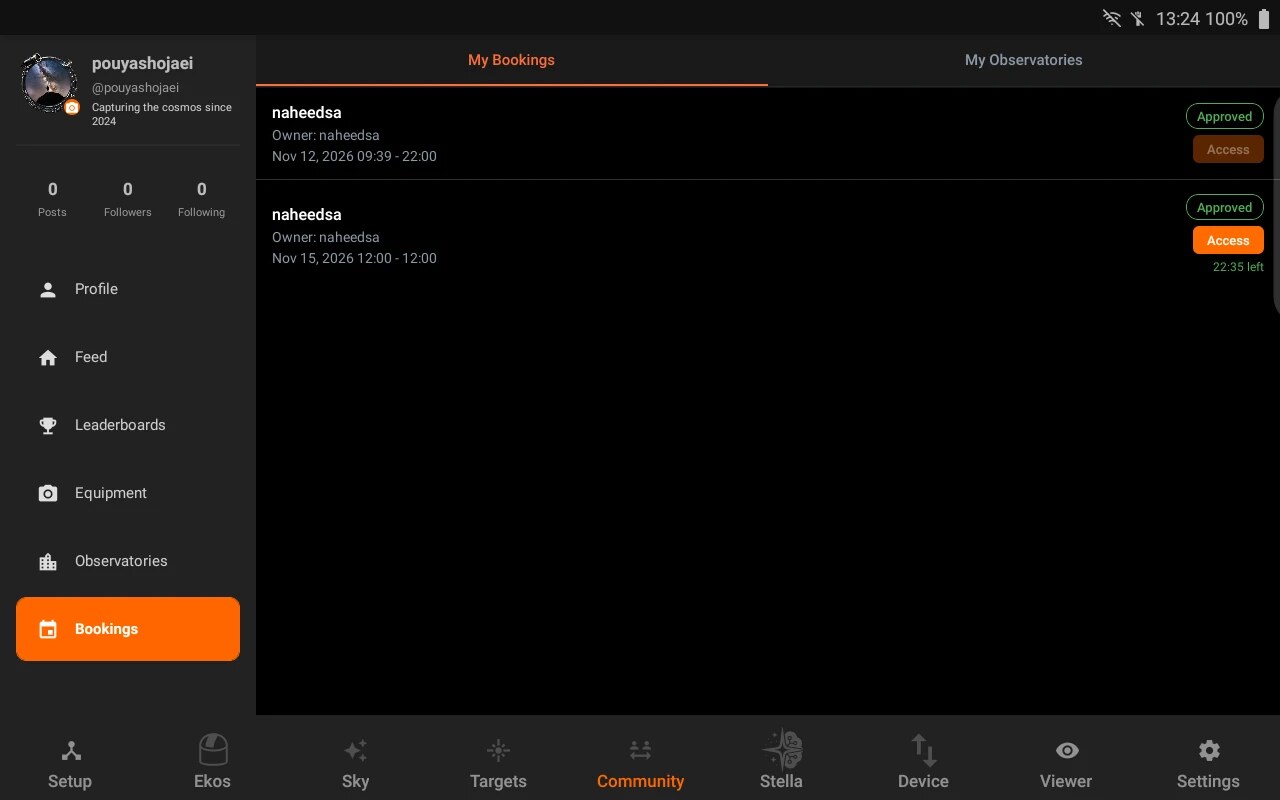
As a renter, you can see your bookings and their status under Community > Bookings > My Bookings.
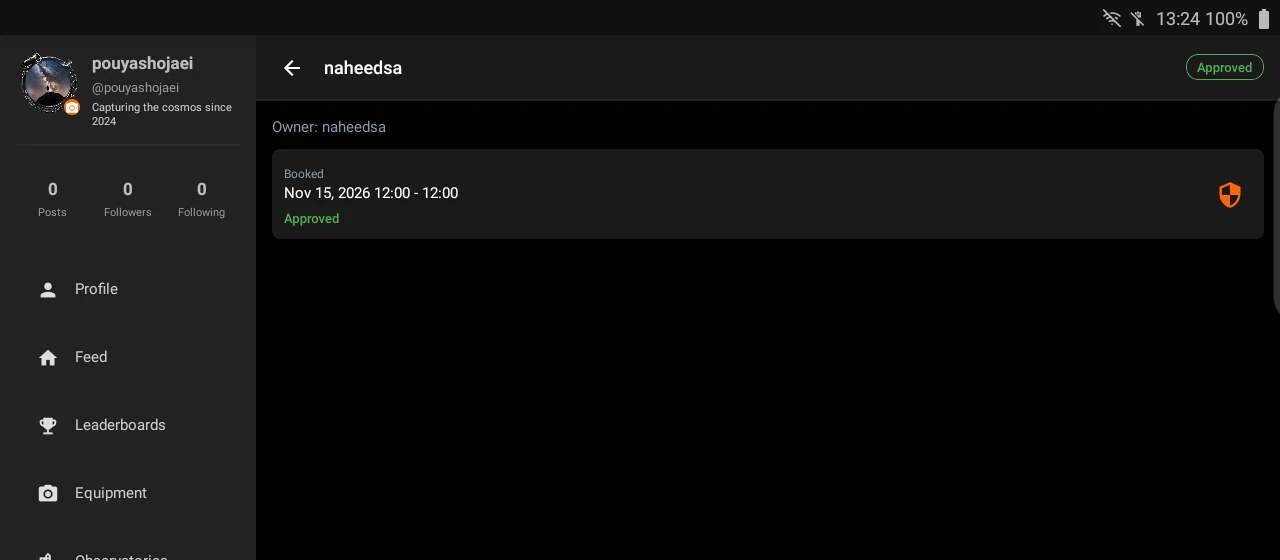
Press on a booking to see its details. The shield icon shows what the owner lets you use. You can also cancel the booking from here.
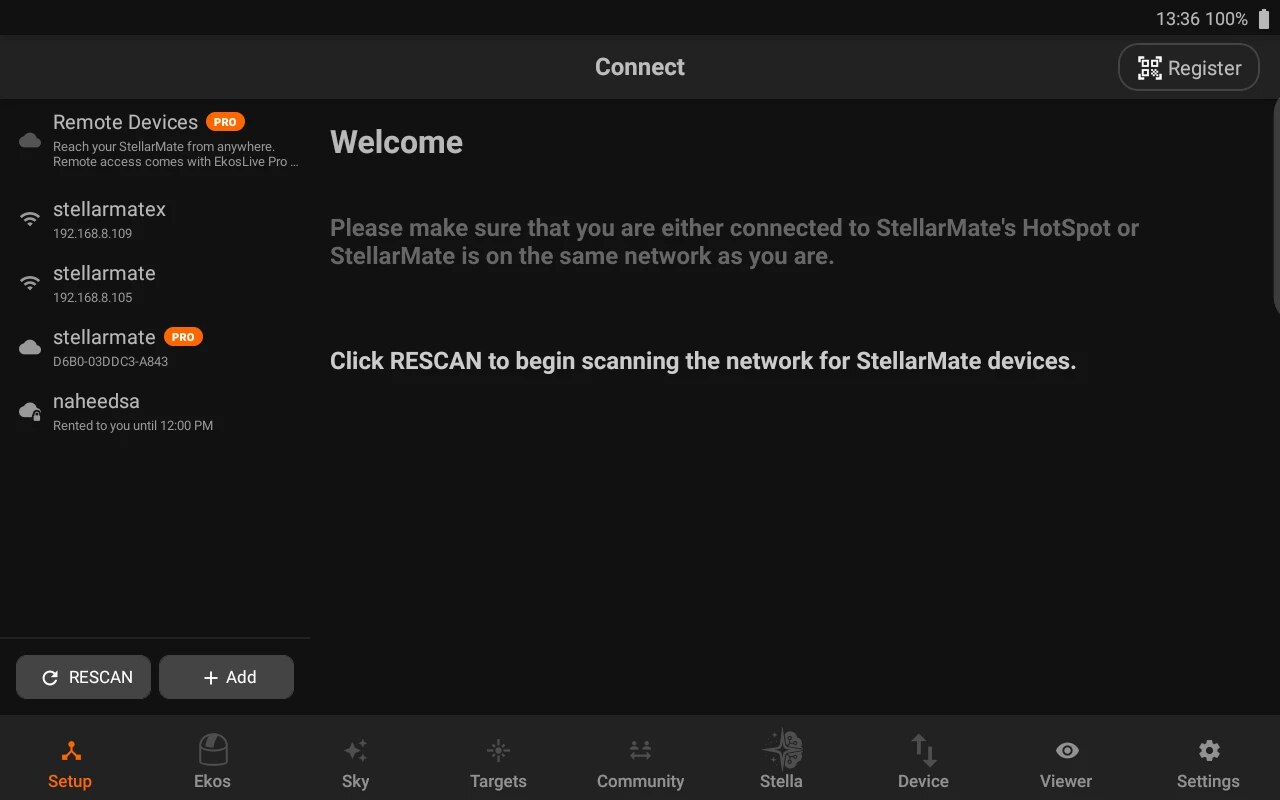
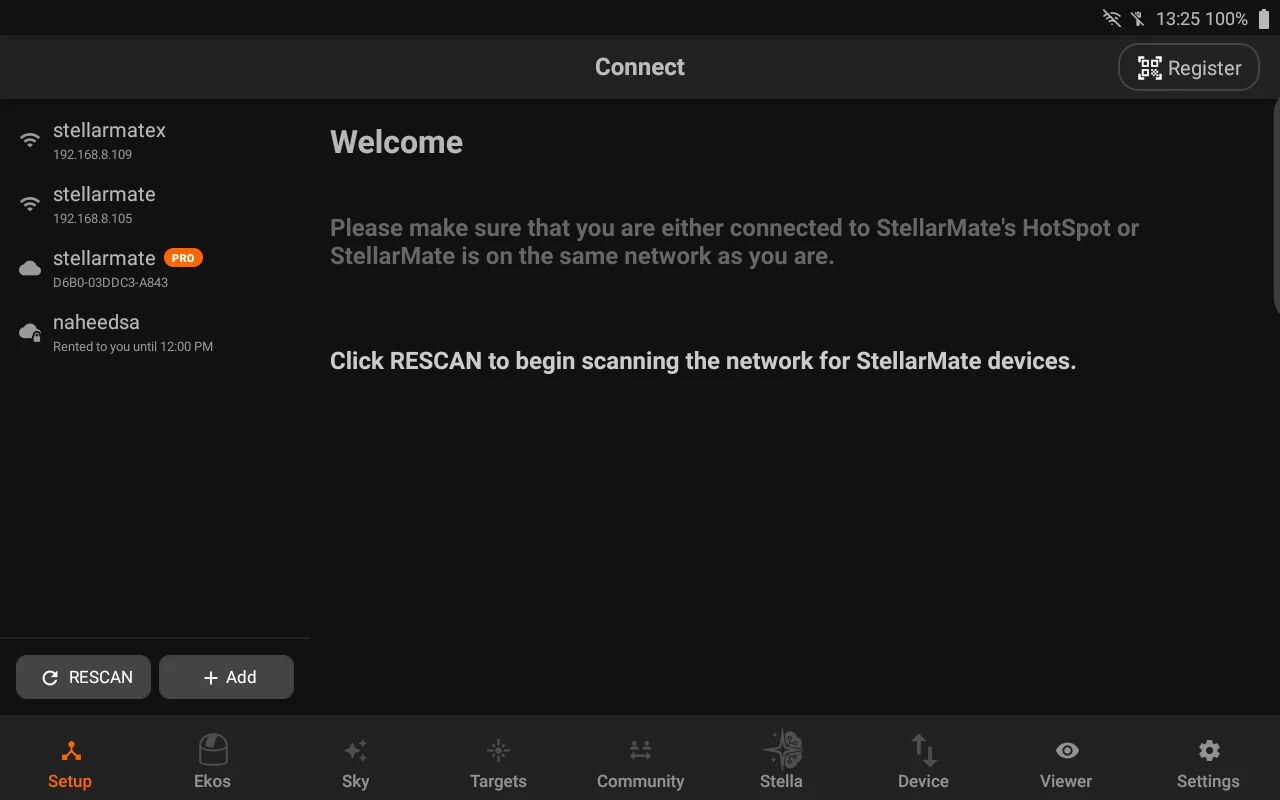
During your booked time, the rented observatory appears in the Setup tab, marked “Rented to you”. Press on it to connect.
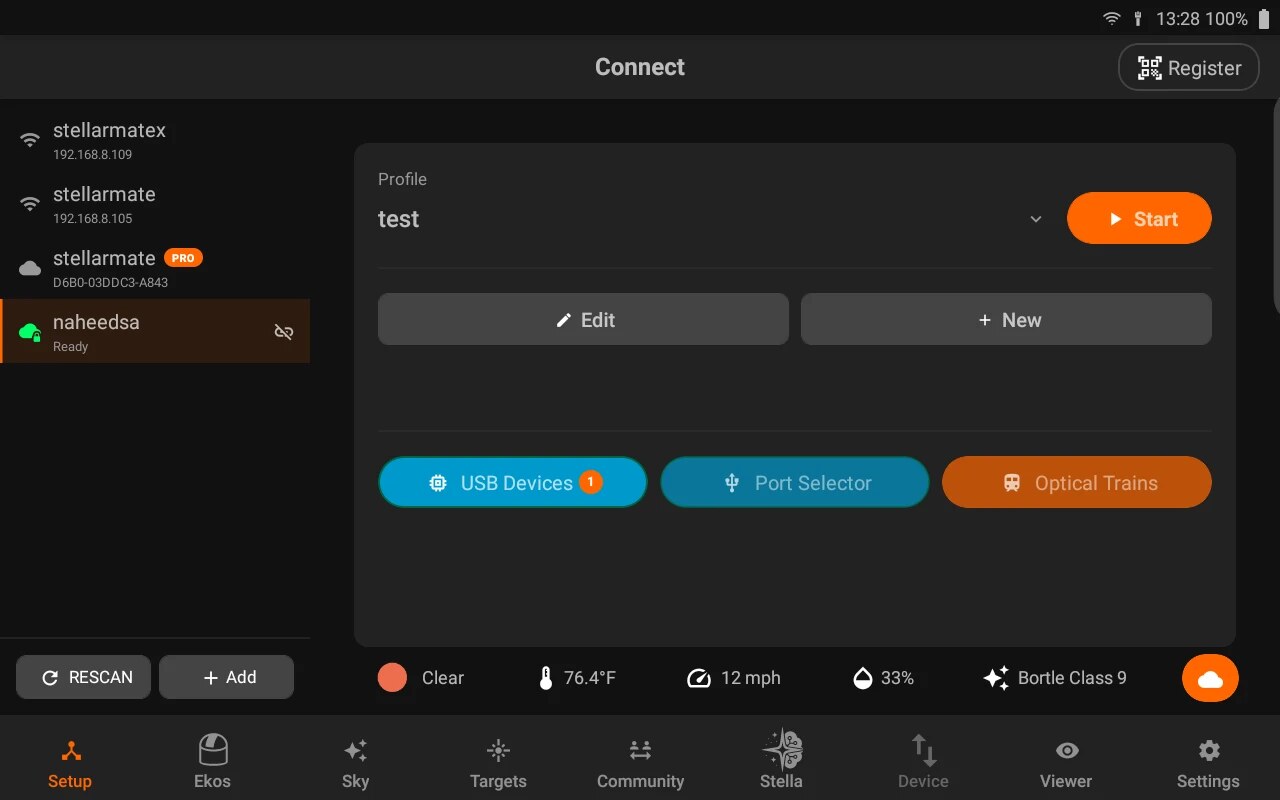
Once it shows Ready, start the profile and use Ekos as usual.
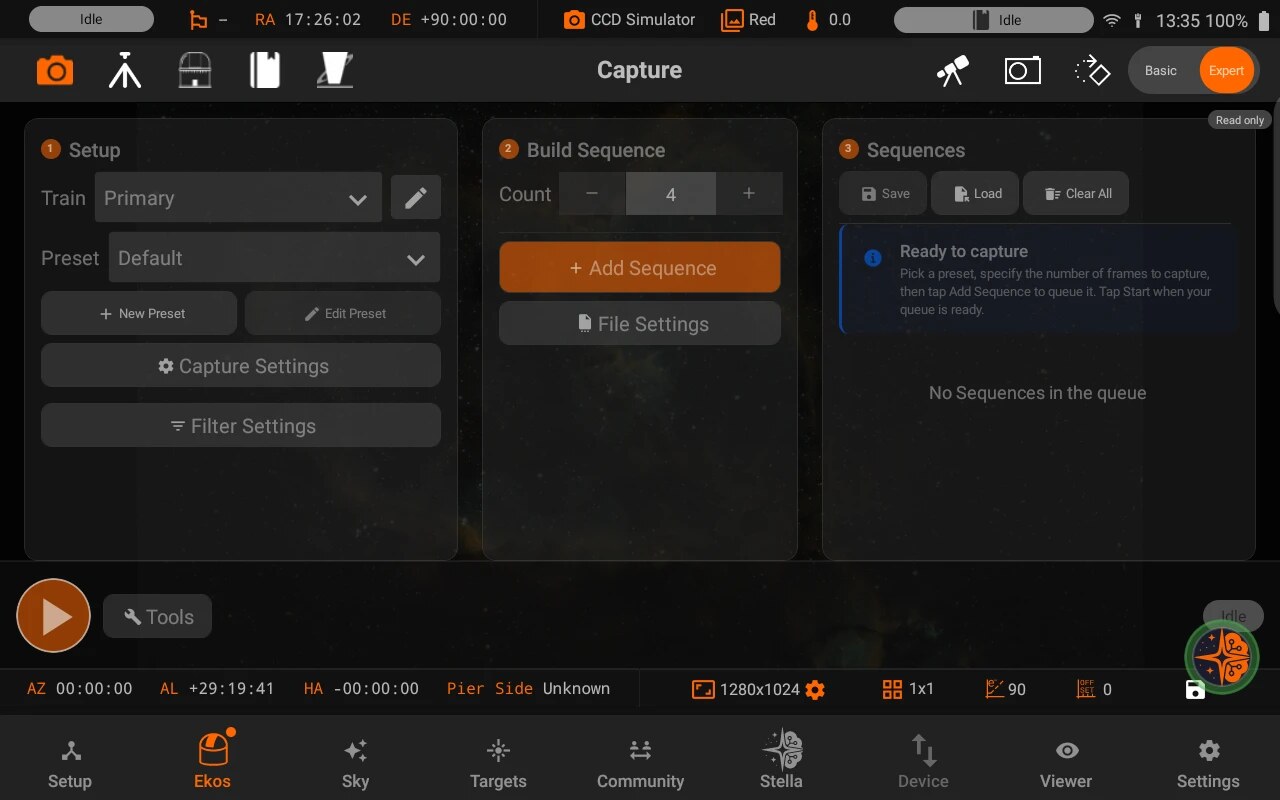
Parts of Ekos that the owner set to Read show Read only and cannot be changed.
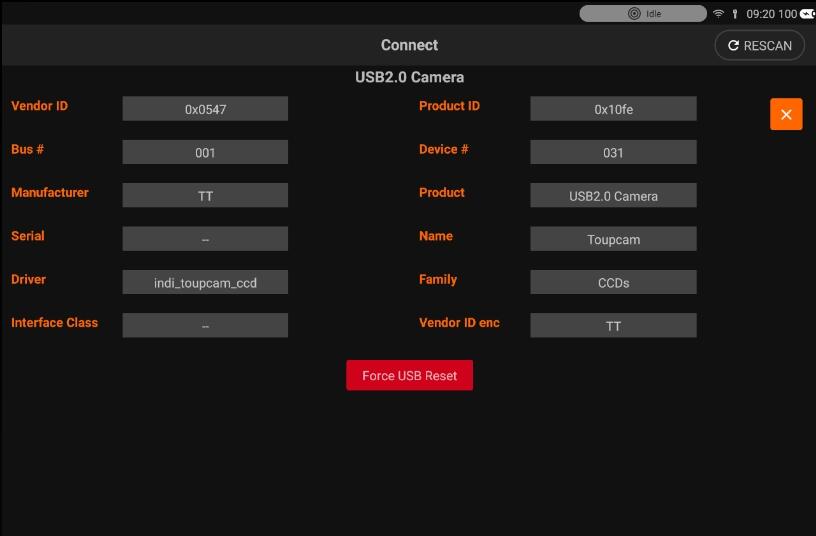
While connected to a rented observatory, you can only reset the app on your own tablet, never the owner’s device.
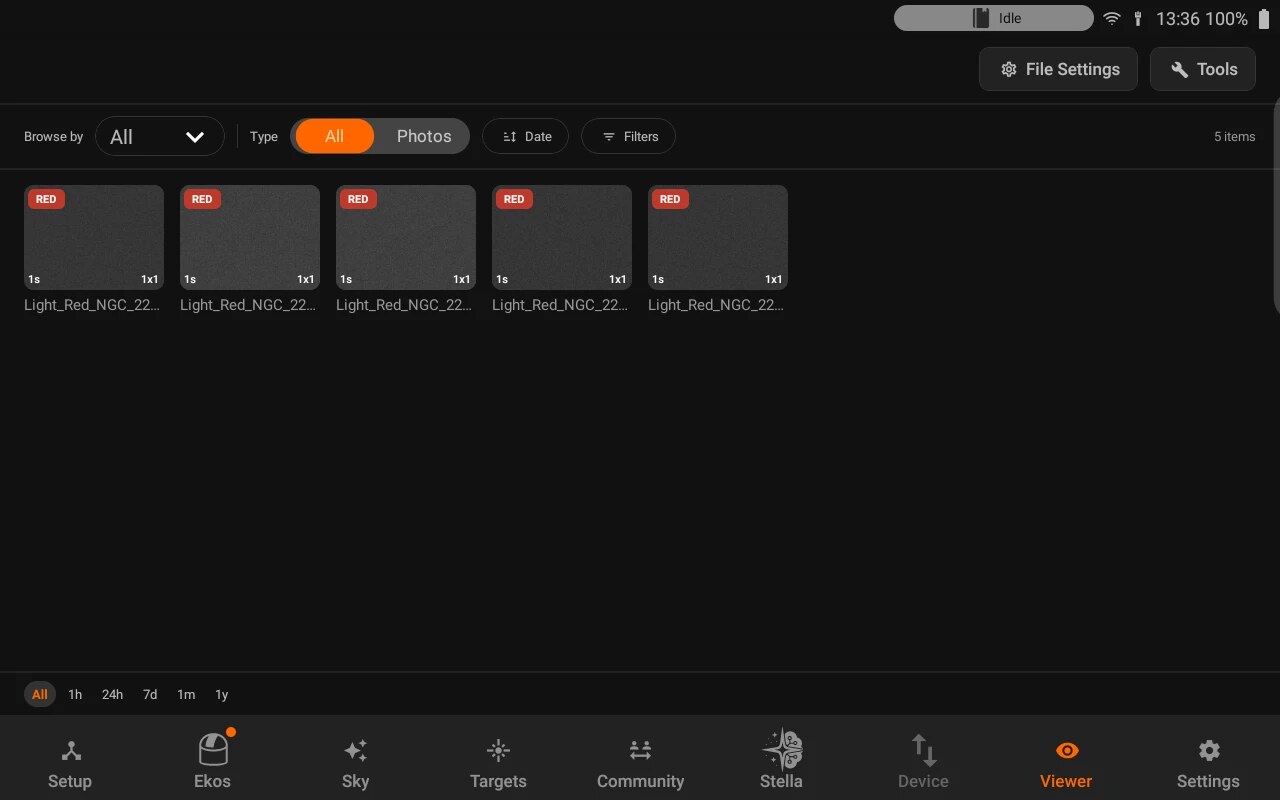
Every frame you capture is saved to your own EkosLive cloud, not on the owner’s StellarMate. You can view them in the Viewer tab, even after the booking ends.
To disconnect, press the unlink icon next to the observatory in the Setup tab. The owner’s StellarMate is put back as it was.