22. Using GPS
Time and Location settings are critical to the proper operation of StellarMate. The sources of each can be from GPS, Internet, or StellarMate App. When using StellarMate App, the time and location data from the phone/tablet is dispatched to StellarMate which is then syncrhoized. Therefore, a GPS is not strictly necessary when using the SM App directly to control StellarMate.
# Time
Time can be fetched from StellarMate App, or Internet (if available), or GPS module. On the StellarMate Pro, the built-in GPS should provide accurate time and location data. For StellarMate on Raspberry PI and MiniPC, an external USB GPS dongle would be necessary for accurate time keeping.
# Location
Location can be fetched from StellarMate App or GPS module. When connecting remotely to StellarMate from KStars, ensure that both your local KStars and remote system have the same time, location, and timezone to ensure accurate simulation of the night sky.
The time & location settings are not only used for KStars, but also to synchronize the mount and any other devices with time & location dependencies. For example, some weather drivers depend on location to query and retrieve information about the current weather.
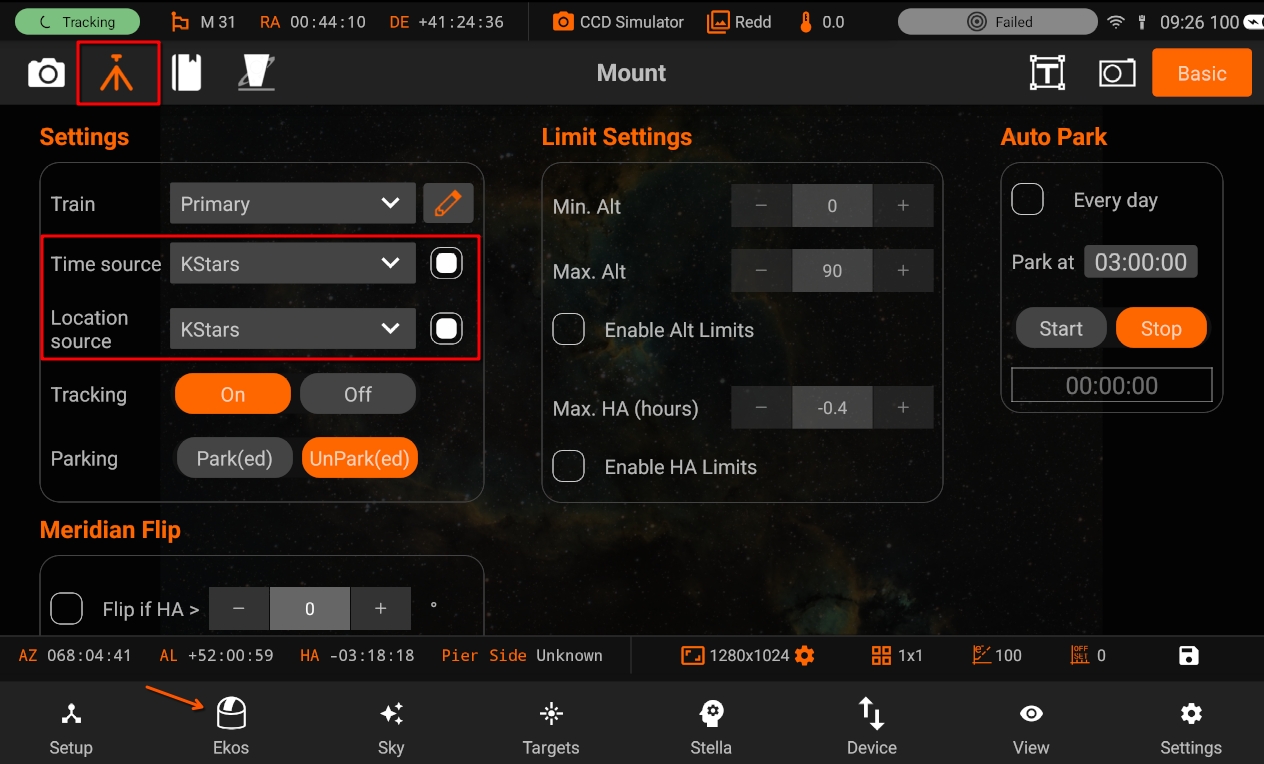
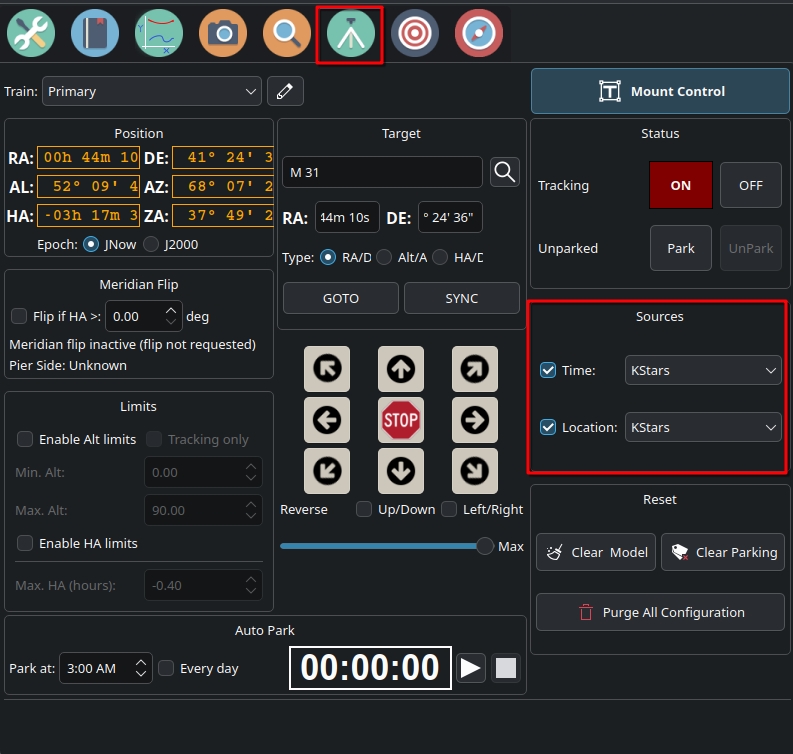
You can select the master source of each field to give you fine control. Some INDI drivers (e.g. GPSD) can provide location and time services and therefore can be selected as the master source. When using StellarMate Pro, you can either use KStars as the master source or allow StellarMate (SM Pro GPS) to act as the primary time and location provider. In both cases, KStars will synchronize once Ekos starts.
Note When using GPS dongle or StellarMate Pro, the unit’s time & location are automatically synced on startup given the GPS achieved a lock. There is no reason to use GPSD driver nor modify master source, leaving it to KStars is fine as the system time and location is updated automatically by StellarMate
From SM App:
From Ekos:
22.1. Selecting a GPS Dongle
Any U-Blox based GPS USB dongle would work with StellarMate. Here are a few from Amazon:
Diymall Vk-172
Stratux Vk-162
USB GPS Receiver
Most of these dongles need to be outdoors to receive any satellite signals. They can be connected to any USB slot in StellarMate.
22.2. Configuring GPS in StellarMate
After plugging the USB dongle for the first time, you need to do the following:
Use StellarMate Serial Port Assistant tool to assign a permanent designation to the USB dongle.
Configure KStars to mark GPS as the primary source for Location & Time updates.
Create an Equipment profile with the GPSD driver selected in one of the Aux. dropdowns.
This video tutorialcovers all the steps above.