18. Web Manager
StellarMate Web Manager is a simple Web Application to manage INDI server and control StellarMate. It is accessible as long as there is a network connection (WiFi/Ethernet/Hotspot) between you and StellarMate. For example, if you are in inside the house with a PC/Mac/Tablet, you could use your browser to remotely manage StellarMate drivers. It supports multiple driver profiles along with optional custom remote drivers. It can be used to start INDI server locally, and also to connect or chain to remote INDI servers. You can use it to Restart or Shutdown the unit, and to connect to VNC frontend from the web. Furthermore, the Web Manager provides a RESTful API where you can issue simple calls to start and stop INDI services over the network. With the Web Manager, you can access StellarMate Serial Port Assistant and VNC. Furthermore, you can also restart and shutdown INDI from the interface.
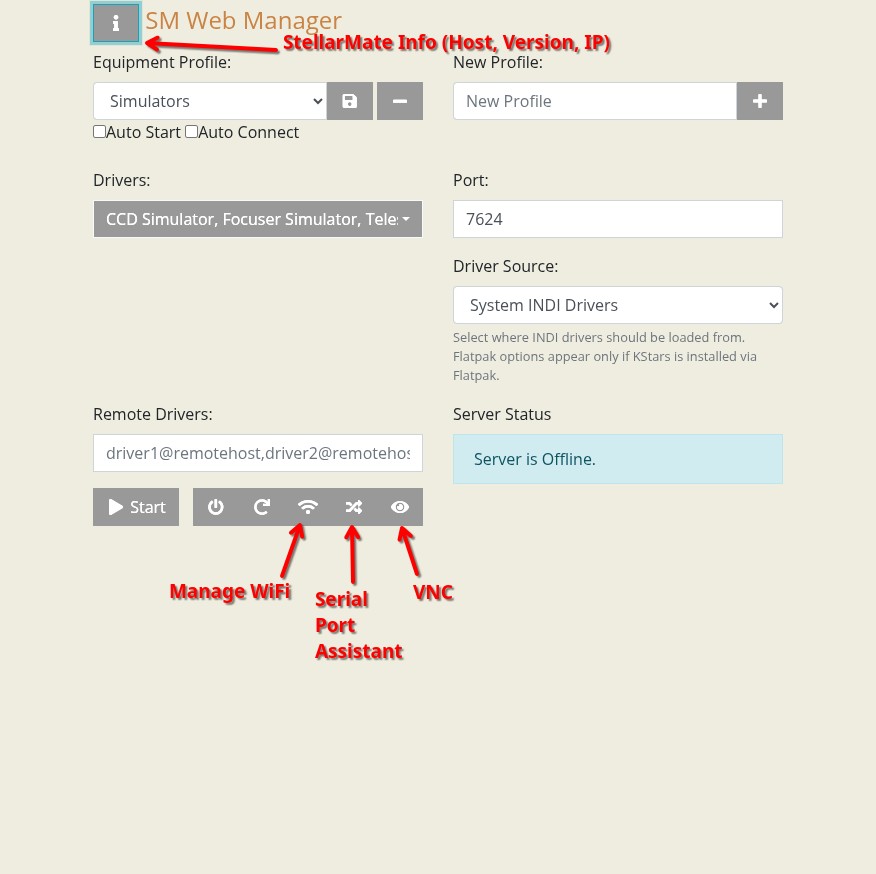
- By default, StellarMate is shipped with the Simulator profile. It is composed of the following drivers:
Telescope Simulator
CCD Simulator
Focuser Simulator
Driver Source
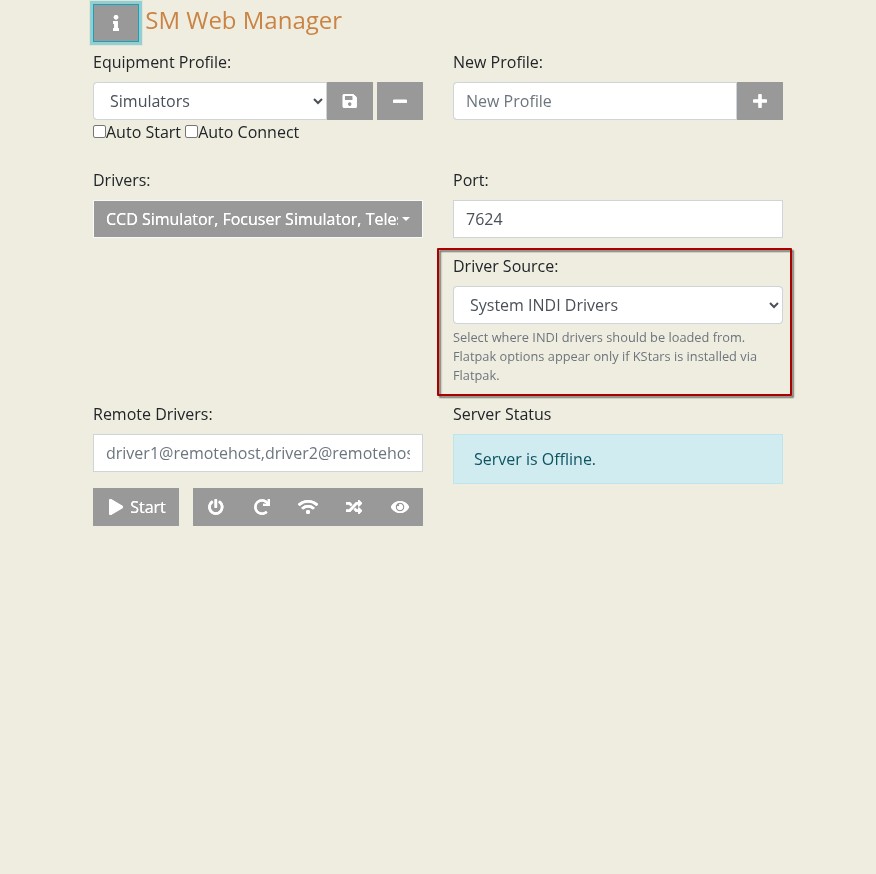
By default, Driver Source is System INDI Drivers. You can select is from the list that are available.
You can run the Simulator profile to test the simulators and connect to them from any client.
18.1. Web Manager URL
You can access the Web Manager from any browser at this url:
Note
When accessing StellarMate directly via Hotspot (Access Point), the unit IP address is always 10.250.250.1. Therefore, if you are having an issue accessing the unit via its hostname, you can simply use the IP address in your browser to access StellarMate Web Manager (http://10.250.250.1:8624).
Furthermore, it can be access in the StellarMate App by going to the device tab and click on Web Manager button.
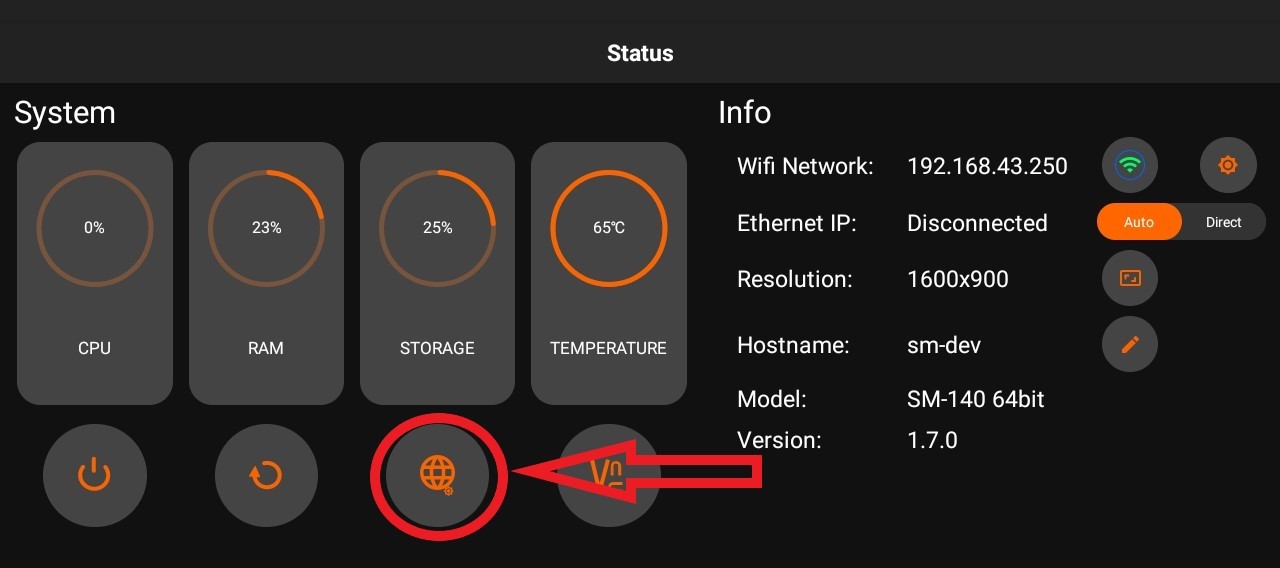
Note
Interacting with the StellarMate Web Manager is usually not necessary since both Ekos and the StellarMate App can operate the equipment profiles directly. The Web Manager is useful when you are not using the StellarMate App and need to remotely manager the drivers directly.
18.2. Device Information
The device information button brings up an information popup to show the following information:
StellarMate Unit name. StellarMate Unit model. StellarMate OS Version. List of IP addresses: Connection to StellarMate is usually done via its hostname, however, you can connect directly via IP address.
18.3. Adding New Profile
Before you add a new profile, you need to identify which drivers you need for your equipment. You can browse all available devices in the INDI Devices page, or you can simply scroll through the list of available drivers in the Driver selection dropdown. To add a new profile:
Enter the device name
Click the Plus button
- Once the new device is added, select the appropriate drivers from the list. Please note that you may need to run some drivers from the Auxiliary class in the following situations:
Joystick: If you plan to use a joystick with your mount, select the Joystick driver from the auxiliary list. SkySafari: To monitor and control your mount from SkySafari, select the SkySafari driver from the auxiliary list. WatchDog: This driver is required for secure remote operation of observations. In the case of communication loss, you can configure the driver to perform a safe shutdown of your observatory.
Click the Save button to save your profile.
Click Start to start INDI server. If all goes OK, you should see a message in the notification area.
18.4. Removing Profile
To remove an equipment profile, press the Minus sign next to it. Please note this operation is permanent.
18.4.1. Auto Start
If you want to automatically start a particular equipment profile whenever StellarMate is powered on, check the AutoStart checkbox.
18.5. Auto Connect
In addition to Auto Starting an equipment profile, you can also connect all equipment which is equivalent to pressing the connect button for all the drivers. The connection command is usually sent 2 seconds after starting the profile. To enable auto connection, check the Auto Connect checkbox.
18.6. Starting & Stopping Server
Click Start to establish the INDI server. The list of active drivers running should be displayed in the info box. Once the server is established, you can connect to StellarMate from any INDI client.
Note
If you are using Ekos, you do not need to manually start/stop drivers in the web manager. Simple check INDI Web Manager checkbox in Ekos Profile Editor, and Ekos manages starting/stopping INDI drivers transparently.