13. Connecting Mounts
StellarMate supports a broad range of mounts. For a mount to be connected it must satisfy the minimum requirements
It must be a GOTO mount. It must have a serial, USB, Bluetooth, Wired, or Wireless interface to an extermal device or computer.
The documentation for each mount, including supported connection methods, are included in the mount-specific documentation on the INDI devices portal.
13.1. Mount Connection Guide
In order to know what connections your mount supports, check the following table:
Manufacturer |
HC |
Direct |
WiFi |
Ethernet |
Bluetooth |
Comment |
Cables |
|---|---|---|---|---|---|---|---|
Meade |
Yes |
NA |
Yes |
NA |
NA |
WiFi requires external Stella WiFi Adapter |
IKA-203 & IKA-204 |
Celestron |
Yes |
NA |
Yes |
NA |
NA |
|
IKA-205 |
SkyWatcher / Orion |
Yes |
Yes |
Yes |
NA |
Yes |
|
IKA-201 & IKA-206 |
iOptron |
Yes |
Yes |
Yes |
NA |
NA |
|
IKA-202 |
Astrophysics |
Yes |
NA |
NA |
NA |
NA |
||
Omegon |
Yes |
NA |
NA |
NA |
NA |
||
Vixen |
Yes |
NA |
NA |
Yes |
NA |
||
10Micron |
Yes |
NA |
NA |
Yes |
NA |
||
Avalon |
Yes |
NA |
NA |
NA |
|||
Paramount |
NA |
NA |
NA |
Yes |
NA |
StellarMate can control Paramount only via TheSkyX TCP Server. The INDI Paramount driver must connect to TheSkyX server to drive the mount. Both StellarMate and TheSkyX must be on the same network. |
|
PMC-8 |
Yes |
NA |
Yes |
Yes |
NA |
||
Losmandy G11 |
Yes |
NA |
NA |
NA |
NA |
||
Explore Scientific EXOS2 |
Yes |
NA |
Yes |
Yes |
NA |
||
Explore Scientific iEXOS100 |
Yes |
NA |
Yes |
Yes |
NA |
||
Losmandy Gemini |
Yes |
NA |
NA |
Yes |
NA |
||
Temma Takahashi |
Yes |
NA |
NA |
Yes |
NA |
||
TeenAstro |
Yes |
NA |
NA |
Yes |
NA |
Ethernet connection is supported (Firmware > v1.1) |
|
SkyWatcher Virtuso |
Yes |
NA |
NA |
NA |
NA |
||
SkySensor2000PC |
Yes |
NA |
NA |
NA |
NA |
||
Pulsar2 |
Yes |
NA |
NA |
NA |
NA |
||
AOK SkyWalker |
NA |
NA |
Yes |
Yes |
NA |
||
OnStep |
Yes |
Yes |
Yes |
Yes |
Yes |
||
Rainbow RS-125 |
Yes |
NA |
NA |
NA |
NA |
||
ArgoNavis |
Yes |
NA |
NA |
NA |
NA |
||
Digital Setting Circle |
Yes |
NA |
NA |
NA |
NA |
Methods of Connection
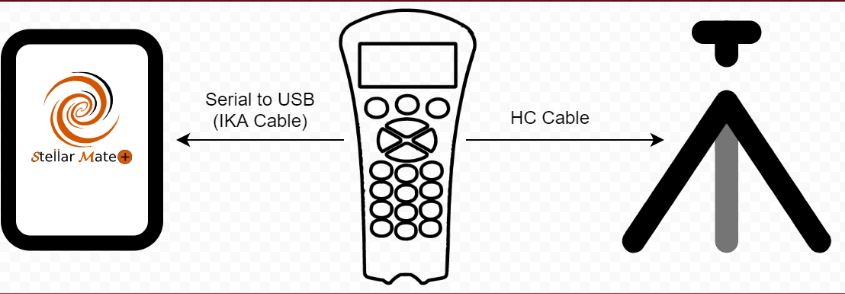
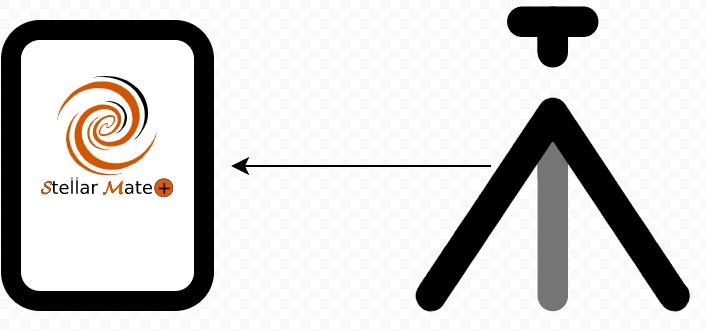
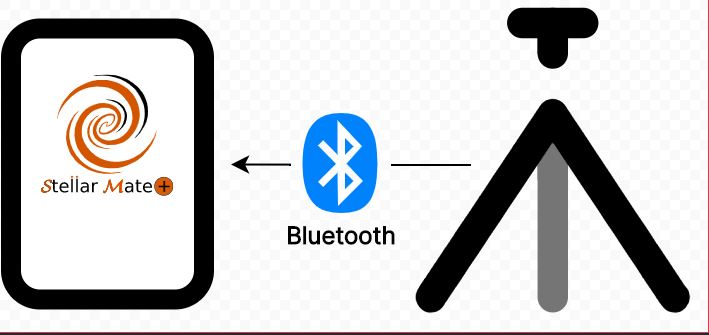
The following diagrams illustrates the methods of connection:
HC (HandSet Controller)
Direct
WiFi
Hotspot Mode
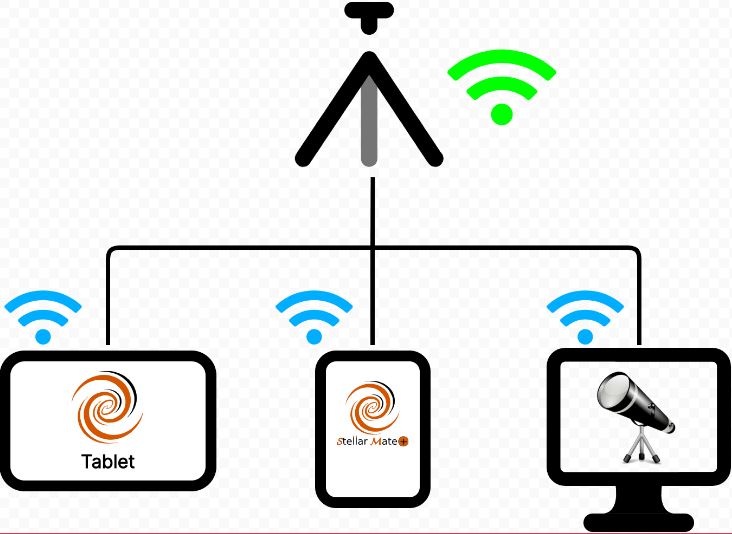
WiFi Insfrastructure
Bluetooth
WiFi Infrastructure
Bluetooth
13.2. Serial to USB
IMPORTANT
In order to connect your mount via Serial to USB, you need to get a mount-specific Serial to USB cable, which can be bought from Ikarus Technologies. Most mounts provide an RS232 port (usually located in the handset). An RS232 to USB cable is required in order connect the mount to StellarMate. StellarMate is equipped with 4 USB ports. However, it is highly recommended to use an external powered USB Hub as it can reliably support power to your equipment. WARNING Most problems in operating your equipment with StellarMate are related first and foremost to power problems. Therefore, please invest in reliable power supply for all your equipment!
13.3. Wired Network
- Some mounts support wired networked connection via a dedicated Ethernet port. Depending on the mount manufacturer, the mount can be either connected directly via an Ethernet cable (StellarMate to Mount direct), or the mount can be connected to a wired router where it can be accessed over the network. Consult the mount manual to find which mode it supports and what is the default IP address and port of the mount once it is connected to the network.
Direct Ethernet: When connecting a Direct ethernet cable without a router in between, an automatic IPv4 address is created. The automatic IP address is usually in the form of 169.254.XXX.XXX. In order for StellarMate to communicate with the mount, the exact IP address and port must be specified in the INDI Control Panel. StellarMate can also be configured to any IP address manually in order to communicate with whatever IP schema used by the mount. Ethernet LAN: If the mount can be connected to a router, it should be able to obtain an IP address automatically from the router. Access your router configuration page and find the IP address assigned to the mount. Use this IP address in the INDI Control Panel in order to establish communication with it. The port number should be listed in your mount manual.
13.4. Wireless Connection
- Wireless mounts are usually connected either directly (via mount own Hotspot) or they can be configured in Infrastructure Mode where they can join an existing WiFi network.
Mount HotSpot: When connecting a mount hotspot, make sure that all devices including the laptop, tablet, StellarMate..etc are all connected to the mount hotspot. This is to ensure that all the devices are on the same network talking to each other. You cannot have half the devices on a different network. Once the devices join the mount HotSpot network, they should be assigned their own IP addresses. Use the mount hotspot IP address in INDI Control Panel in order to establish communication with the mount. The port number should be listed in your mount manual. Mount Infrastructure: Some Wireless mount can be configured in Infrastructure Mode. This is the mode where the mount does not start its own hotspot but insteads joins an existing WiFi network. Make sure all the relevant devices (StellarMate, Laptop, Tablet..etc) are all joined to the same WiFi network so that they can talk to each other. Find out the mount IP address and enter it in INDI Control Panel in order to establish communication with the mount. The port number should be listed in your mount manual.