StellarMate App FAQ
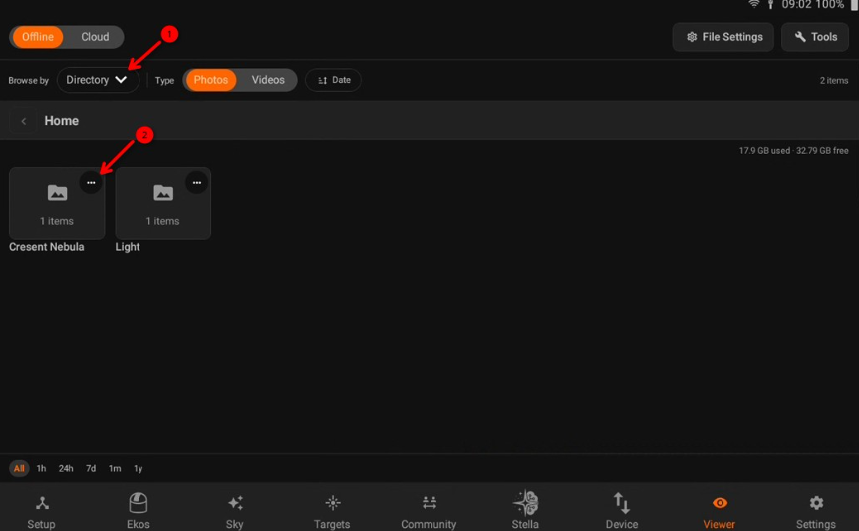
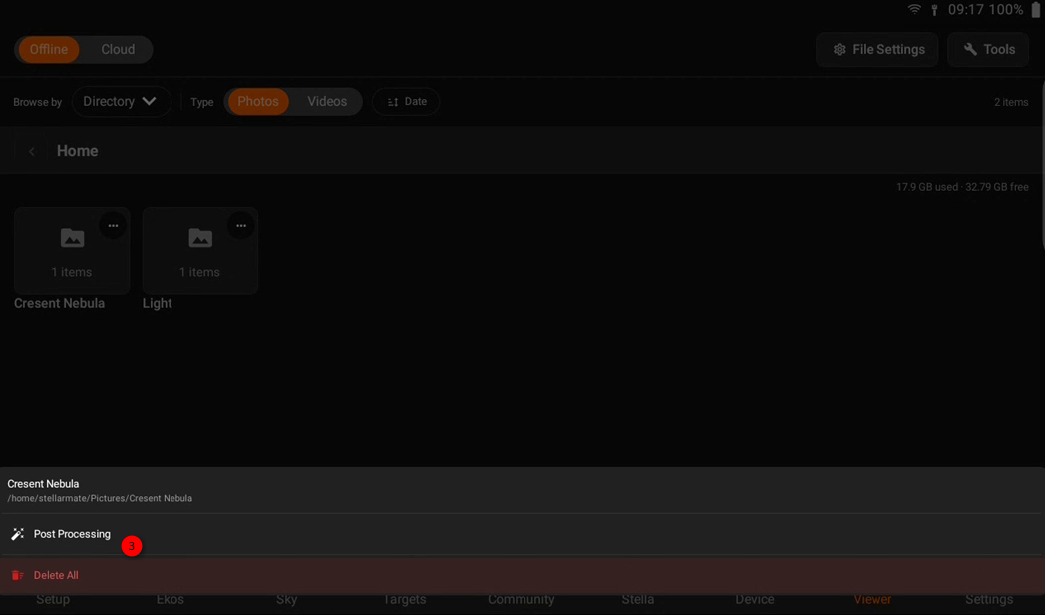
How to perform Post-processing in StellarMate App?
Do I have to use StellarMate App or can I control StellarMate using other methods?
StellarMate is probably the most versatile astrophotography controller in the world. We offer multiple ways to control your equipment the way you prefer.
StellarMate App is only required for the initial setup of your device. Therefore, after you SCAN and connect to your StellarMate unit, and the connection LED turns green, your unit setup is complete.
You can then continue to use the StellarMate App to control your unit, or select one (or more) of the following methods:
1. Download KStars on Windows/Mac/Linux and connect remotely to StellarMate.
2. Access StellarMate OS via VNC (using either Web VNC or VNC clients like RealVNC) or Rustdesk, and use KStars that is already running inside StellarMate.
3. Control it completely from the EkosLive Online web interface.
The App fails to detect StellarMate after clicking RESCAN?
Please check the following suggestions:
- Ensure that you can see stellarmate HotSpot network name in the list of networks detected by your tablet. If the stellarmate network is not listed, then check that StellarMate is properly powered. Use the HDMI cable to connect the unit to a nearby monitor/TV and check for any error messages. Take a photo of the error and open a support ticket in order for our technical support to help you further.
- Ensure Tablet is connected to the HotSpot (default password is stellar@mate) or connected to your Home WiFi if StellarMate Controller was joined to the Home WiFi network before. If the tablet is connected to your Home WiFi, do you know its IP address? You can add a device manually by its IP address.
- Open http://stellarmate.local or http://10.250.250.1 from your Tablet/Phone browser and see if you can reach StellarMate Dashbaord. If it fails to reach, then the communication is not established between your Tablet/Phone and StellarMate Controller.
- Open StellarMate Web Manager at http://stellarmate.local:8624 or http://10.250.250.1:8624. StellarMate Web Manager is required to connect to StellarMate App. If the Web Manager is not responding then this could indicate an issue in either the connection or StellarMate OS itself (corrupted image or disk). Connect HDMI cable and look for any messages on the screen and send them to support.
Mobile data can sometimes prevent communication to Hotspots. Disable Mobile Data and check if StellarMate is detected correctly.
If none of the above suggestions work, you can always reflash StellarMate Controller with a fresh SM OS image. Please note that flashing an image erases all the existing content on the StellarMate Controller storage.
How to submit logs?
App requires password but I sign up with my social login
If you signed up with Google/Apple social login, the system generates a random password on the site. For website login, this is sufficient. However, the StellarMate App requires username and password login since it can operate in totally offline mode. Therefore, after signing in to ekoslive.com, go to your 'My Account' and set your own password. Use this password to log in to the StellarMate App.
Where can I find the StellarMate App Licence & Serial Number?
The Serial Number and Licence Key for the Stellarmate App are listed in the Licence Management page.
- If you purchased StellarMate Controller, then the Serial Number can be found on the bottom of the unit. You need to enter the Serial Number in the Licence Management page to generate a license key.
- If you purchased StellarMate OS, then the Serial Number and Licence are automatically generated for you. So just go to the Licence Management page to view them.
If you purchased StellarMate OS or StellarMate Controller before June 1st, 2019, then in order to use the StellarMate App you must download StellarMate OS v1.4.0+ and burn it to the StellarMate SD card.
What to do when you get Session Expired, try to login message?
Every time you connect to StellarMate, it sends a token that the App uses to login to the device. Sometimes, the App uses an old token whereas a new one was generated by the system. The solution is simple, just tap stellarmate again to force a re-login.
My longitude is wrong, how do I fix it?
It's not wrong. INDI uses a different convention to represent longitude. Longitude is 0 to +360 increasing eastwards. For example, if you longitude is 80 West, then in INDI it is represented as (360-80) = +280
Why scheduler indicates are jobs are completed when I start it?
By default, the scheduler is designed to run on multiple nights. Therefore, when started, it tries to continue from where it was left on. If all the sequence images are already captured and stored on disk, then it will declare that all jobs are complete. If you would like to start anew, there are a couple of options:
- Move, rename, or delete the captured images folder.
- Edit the sequence file and change the storage location to a different location.
- Disable Remember Job Progress setting in Scheduler Advanced settings.
Why do I get "EkosLive is Down" message when connecting to StellarMate?
Usually this message is displayed when there is a communication or login error between your phone/tablet and StellarMate. A popup notification would show the exact error. Try to check the following steps:
I. Login Issues
- If the reported error is about authentication:
- Go to Settings tab --> Reset App.
- Restart App
- Sign in
- RESCAN for StellarMate
- Connect Again
- If #1 does not solve the authentication issue then login to StellarMate Via VNC and launch StellarMate Tools app on the desktop then click Reset EkosLive. Reboot stellarmate.
II. Communication Issues
- If you have Mobile Data enabled on your phone, then disable it as this might interfer with your connection to StellarMate Hotspot.
- Double check you are fully connected to the hotspot, sometimes Android/iOS do not fully connect, check network settings for any warnings. If possible, click Keep This Connection.
- Check if you can reach StellarMate WiFi using your tablet browser. Open the browser and then go to http://10.250.25.1 You should see StellarMate Dashboard if all connection is OK.
- If no response at all after reboot (i.e. not hotspot created), try to connect HDMI cable to the mini-HDMI port closest to the USB-C power port and connect it to an external monitor. Do you see any messages? Please send a screenshot to support.
- If all above fails, you can try re-flashing StellarMate OS image unto the SD card (or a new SD card).
If the StellarMate App seems to be stuck on the authentication step, sometimes simply tapping stellarmate again should resolve the issue.
How can I save the LiveStacking image?
Live Stacking image can be saved to the Tablet/Phone storage or photo gallery by clicking on the save button in the LiveStacking options as illustrated below:
Please note that the Live Stacking images are already saved to StellarMate internal storage and can be accessed via the View tab or via browsing SM shared network drive. All Livestacked images are automatically tagged with #livestacking tag so you can easily search for via the tag.
Do I need to have a view of Polaris to use Polar Alignment Assistant?
While a view to the celestial pole is desirable, it's not strictly necessary. The App would work almost anywhere in the sky, prefereably closer to the meridian.
Can I use the App & Ekos on PC/Mac to control my equipment at the same time?
Yes. It is possible to do this by following these steps:
In StellarMate App
- Start your equipment profile.
- That's all
In Ekos on PC/Mac
- Make sure you are connected to the same network as StellarMate.
- Create a new equipment profile with the same drivers started in the App equipment profile.
- Set the profile to remote and the host to stellarmate.local
- Make sure INDI Web Manager is UNCHECKED. This is very important.
- Save and then click start.
- Done!
No License Found for this device!
Starting with StellarMate App v3.0, StellarMate switched to a different management server for license data. If stale license data is encountered, you might receive this error.
The data can only be refreshed after signing in again to the App. Therefore, there are two approaches:
1. Go to Settings --> Logout and close the App and sign in again to refresh the data.
2. Completely uninstall and reinstall the App to ensure there is no residual cache left that might affect this issue.