StellarMate OS 2.5 and later uses Remote Desktop (RDP) instead of VNC. With RDP you can see and control the whole StellarMate desktop from another device. It is the same desktop you see on an HDMI monitor.
You can connect in three ways:
- From any web browser, with nothing to install.
- With a Remote Desktop app on Windows, macOS, Linux, Android, or iOS. This gives the smoothest picture.
- With RustDesk, on your local network or over the internet.
For the web browser and Remote Desktop apps, first connect your device to the same network as StellarMate, either the StellarMate WiFi Hotspot or your home network. RustDesk also works over the internet.
1. Web Desktop
Open your browser and go to:
You can also go to stellarmate.local, click the button in the bottom-right corner, and select Desktop. The StellarMate App opens the same desktop from its Device tab.
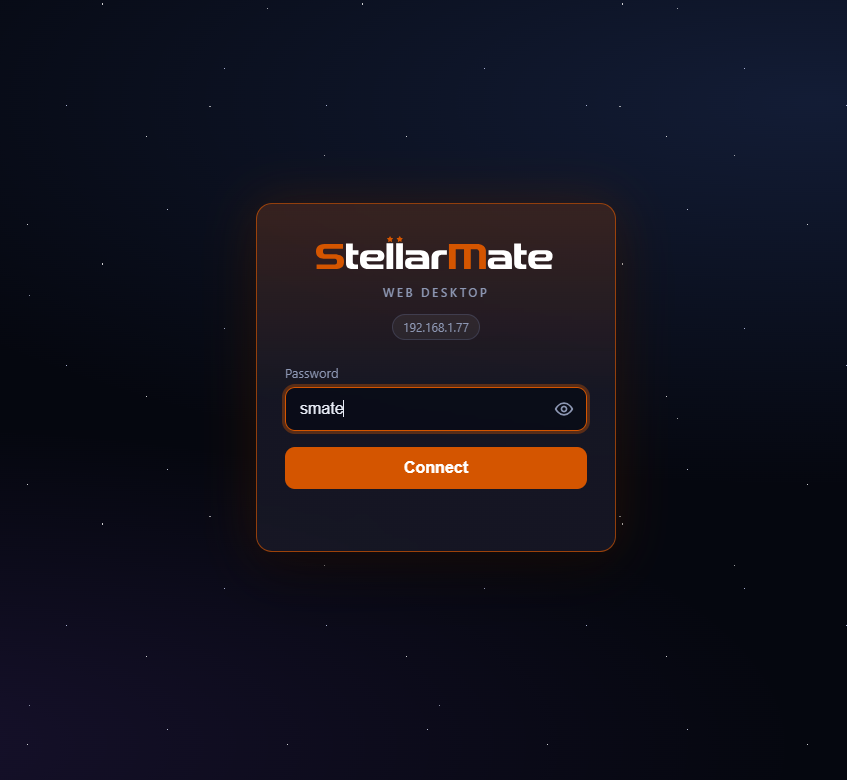
Log in with the password smate. On a phone or tablet, use the toolbar to zoom, switch between touch and touchpad mouse, and open extra keys such as Ctrl and Alt.
Web Desktop Control Bar
After you log in, the Web Desktop shows a control bar. From left to right, the buttons are:

- Zoom out, zoom level, and Zoom in: make the desktop smaller or larger. The number shows the current zoom.
- Fit to window: when on (orange), the whole desktop fits your screen. When off, the desktop is shown at its actual size and you scroll to see the rest.
- Touch mode (hand): tap where you want to click, drag to drag, and hold for a right click.
- Touchpad mode (mouse): works like a laptop touchpad. Drag to move the pointer, tap to click where the pointer is, and tap then drag to hold the button down.
- Pan (arrows): drag with one finger to move the view without clicking. This is useful when you are zoomed in.
- Keyboard: opens the keyboard of your phone or tablet, plus a row of extra keys: Esc, Tab, Ctrl, Alt, Shift, Super, and the arrow keys. Ctrl, Alt, Shift, and Super stay pressed until you press the next key, so you can type shortcuts such as Ctrl+C.
- Clipboard: type or paste text and tap Send to rig to put it on the StellarMate clipboard, then paste it on StellarMate with Ctrl+V. It also shows the last text copied on StellarMate.
- Full screen: uses the whole screen for the desktop.
- View only (eye): watch the desktop without controlling it. Your mouse and keys are not sent.
- Disconnect (power): ends the session.
- Hide toolbar (arrow): hides the control bar. Tap the small arrow button to bring it back.
In both touch and touchpad mode, pinch to zoom, drag with two fingers to scroll, and tap with two fingers for a right click.
2. Remote Desktop App
Use any RDP client. These are free:
- Windows: Remote Desktop Connection, which comes with Windows.
- macOS, iPhone, iPad, and Android: Windows App from Microsoft, in the App Store or Google Play.
- Linux: Remmina or KRDC.
Add a new connection with these details:
- Computer:
stellarmate.local(port 3389) - Username: stellarmate
- Password: smate
The first time you connect, the app warns that the certificate cannot be verified. This is normal, because StellarMate makes its own certificate. Accept it to continue.
3. RustDesk
StellarMate also ships with RustDesk, a free remote desktop tool. RustDesk works on your local network and over the internet, with no ports to open on your router.
- Install the RustDesk client from rustdesk.com on Windows, macOS, Linux, Android, or iOS.
- In the StellarMate App, open the Device tab, turn on Remote Support (RustDesk), and copy the RustDesk ID.
- In the RustDesk client, enter the ID and connect. Enter the RustDesk password when asked.
We recommend changing the RustDesk password after you turn it on. See the Remote Support tutorial for more details.
4. VNC (StellarMate OS 2.4 and earlier)
StellarMate OS 2.4 and earlier uses VNC instead of RDP. Connect your device to the same network as StellarMate, and then you can either:
- Web VNC: open http://stellarmate.local:6080/vnc.html in your browser, click Connect, and use smate as the password. You can also go to stellarmate.local, click the button in the bottom-right corner, and select Desktop.
- VNC app: use any VNC client, such as RealVNC Viewer, and connect to stellarmate.local on port 5900.
The default username is stellarmate and the default password is smate.
5. Tips
- If
stellarmate.localdoes not work, use the IP address of your unit instead, for example10.250.250.10on the StellarMate Hotspot. You can find the hostname and IP address in the StellarMate App. - If you renamed your unit, use the new name, for example
myobservatory.local. - The default username is stellarmate and the default password is smate. We recommend changing the password after your first login.
- To reach StellarMate over the internet without opening ports on your router, use RustDesk or EkosLive.